Disclaimer: In compliance with MiCA requirements, unauthorized stablecoins are subject to certain restrictions for EEA users. For more information, please click here.
Disclaimer: This FAQ Page is for general information and educational purposes only. It does not constitute legal terms or any form of legal agreement between you and Binance. It should not be construed as financial, legal or other professional advice. The information on this page may be outdated. For legal terms applicable to Futures and Options Trading Services, please refer to the Terms of Use, the Exchange Rules (including the Exchange Procedures) and the Clearing Rules (including the Clearing Procedures) which come into effect on 5 January 2026. Additional terms and conditions will also be set out in the Contract Specifications applicable to the relevant Derivatives contract.
To open or close a Portfolio Margin account, you must meet the following conditions:
You can activate the Portfolio Margin mode from various interfaces. Please note you can switch the account mode (upgrade or downgrade) up to 10 times within 24 hours.
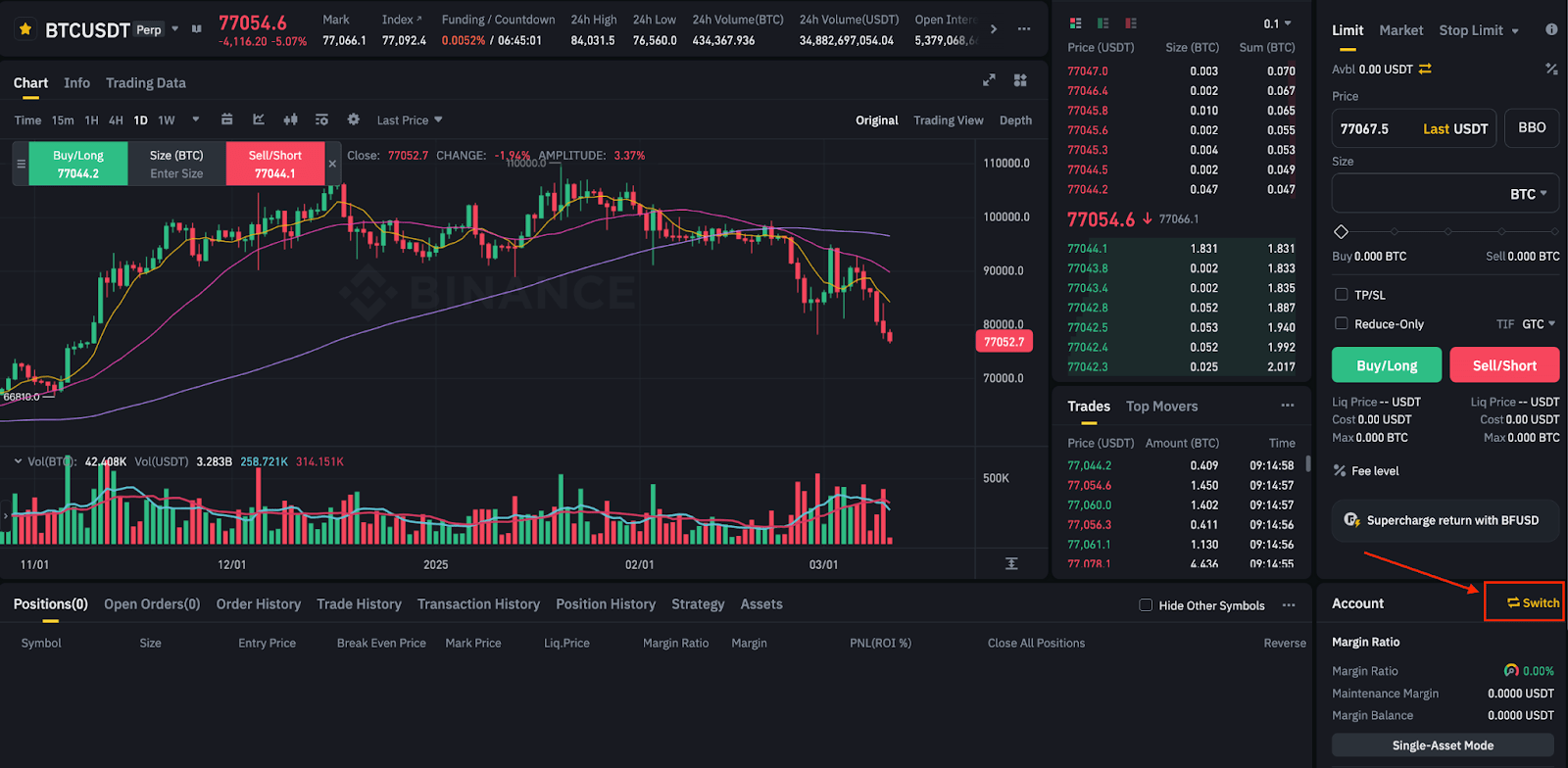
1. Log in to your Binance account and go to the Binance Futures trading page. If you meet the eligibility criteria, you’ll see a [Switch] button next to [Account]. Click [Switch].
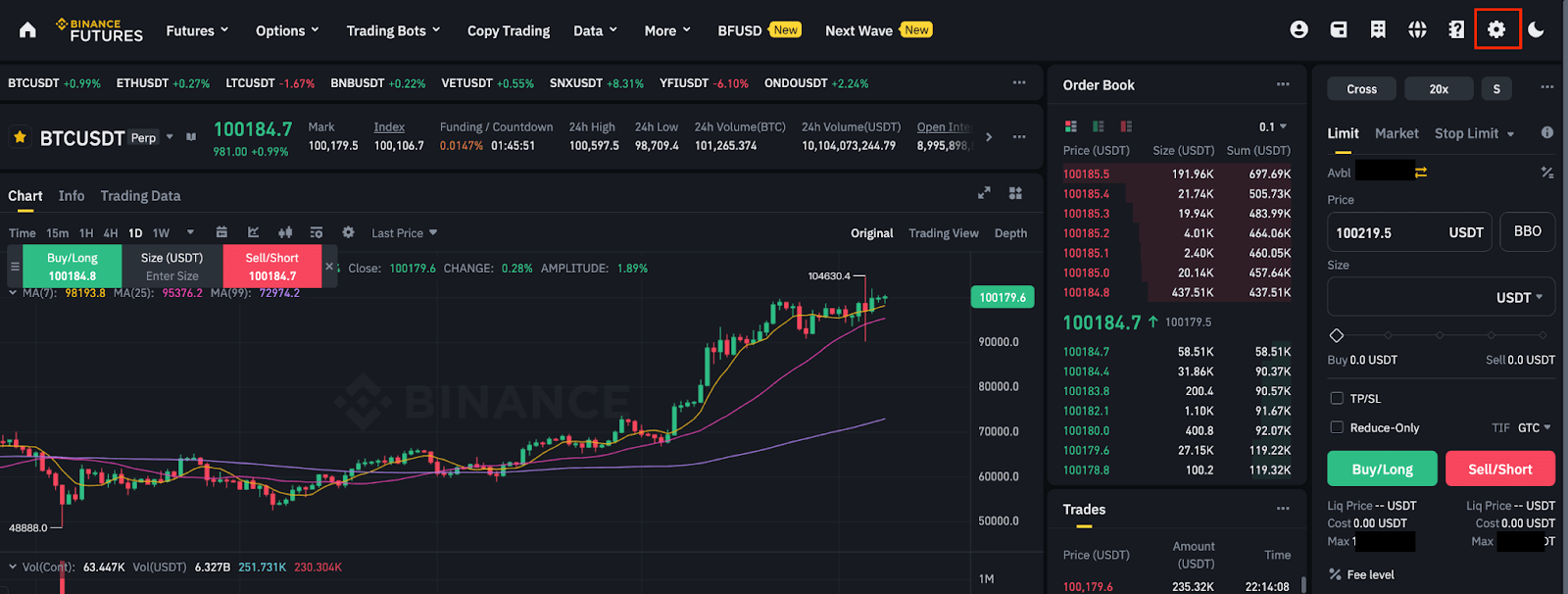
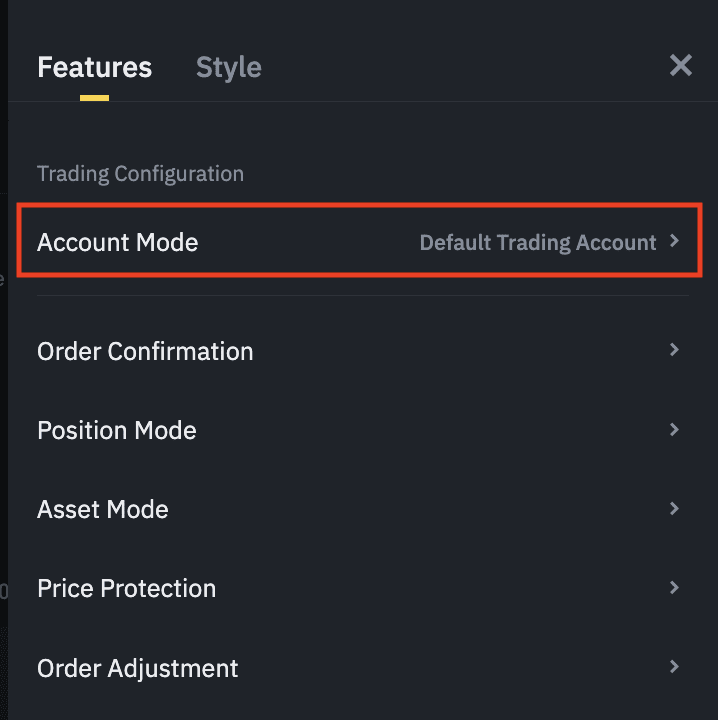
Alternatively, click the settings icon and go to [Settings] - [Account Mode]. Select the Portfolio Margin Mode. Click [Switch].
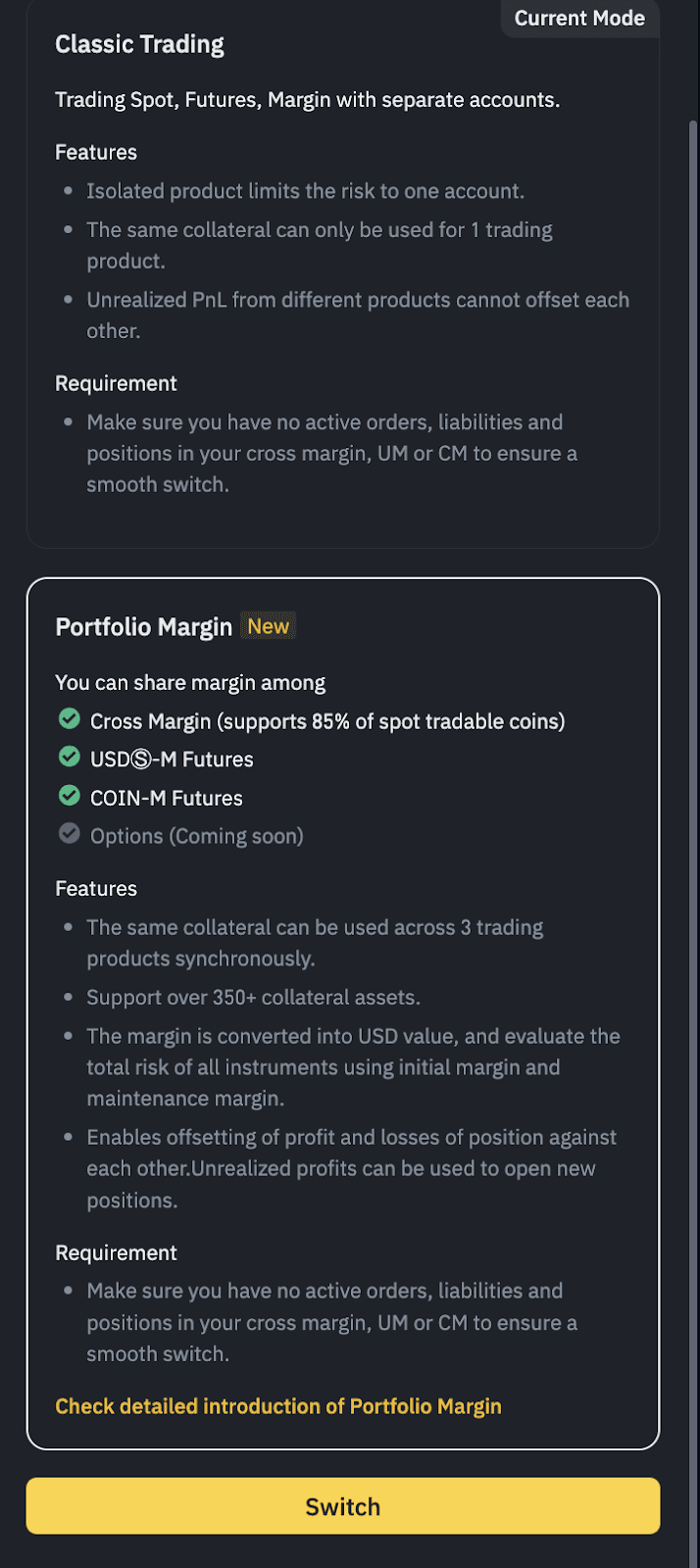
2. Please carefully read the information and terms displayed in the pop-up window before clicking [Confirm].
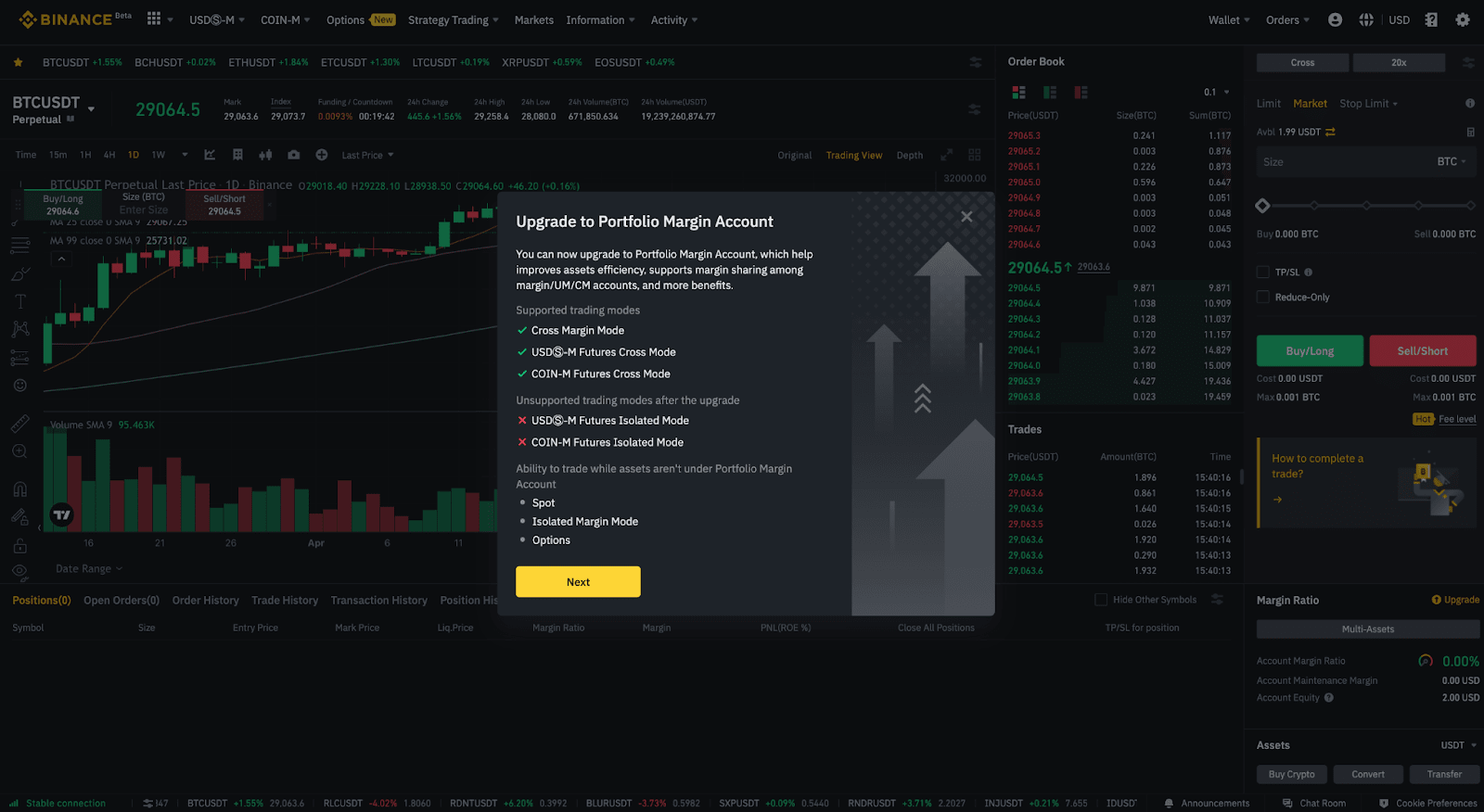
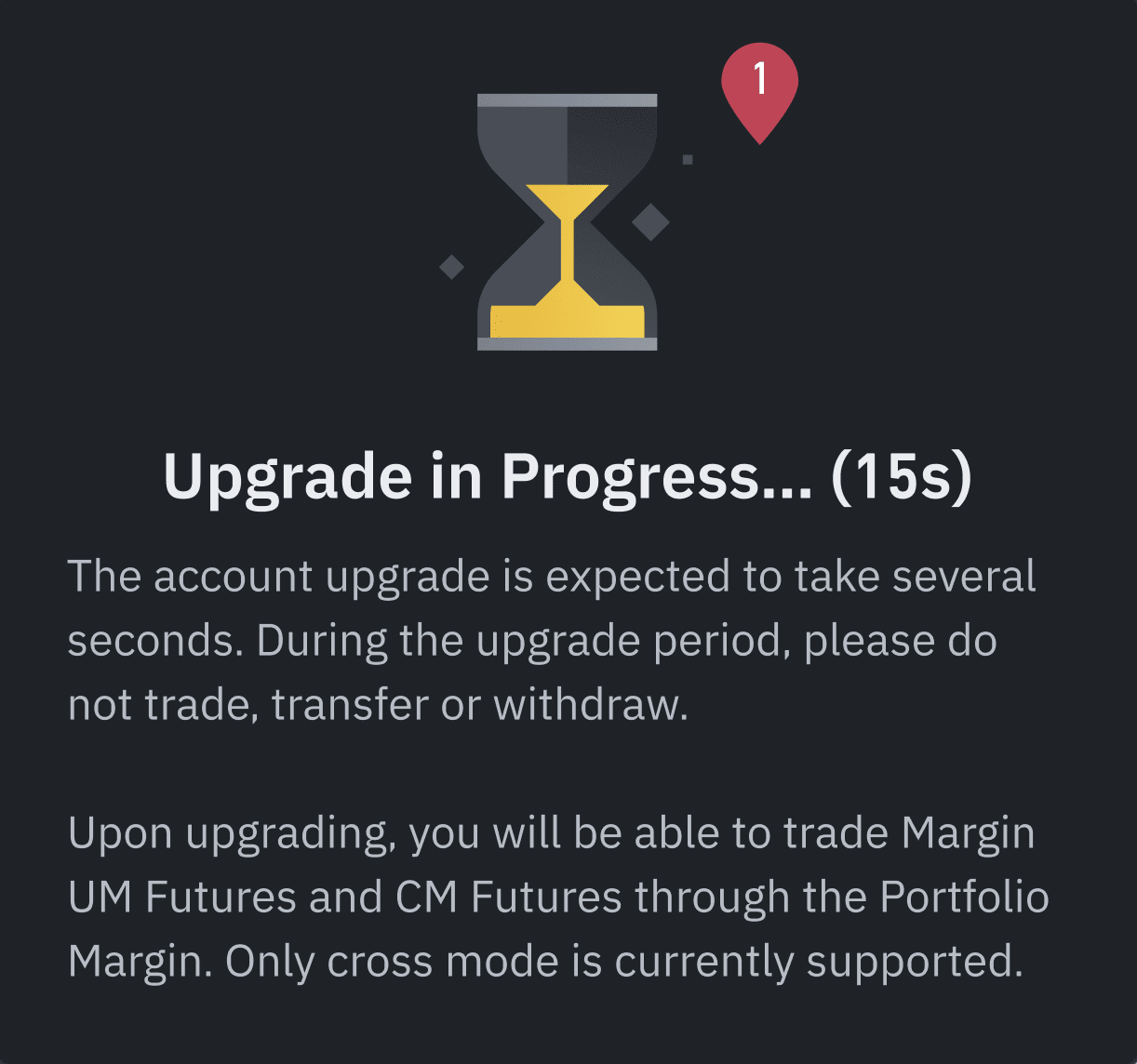
3. You will be prompted to confirm the activation of Portfolio Margin. Click [Activate]. This process could take up to 15 seconds.
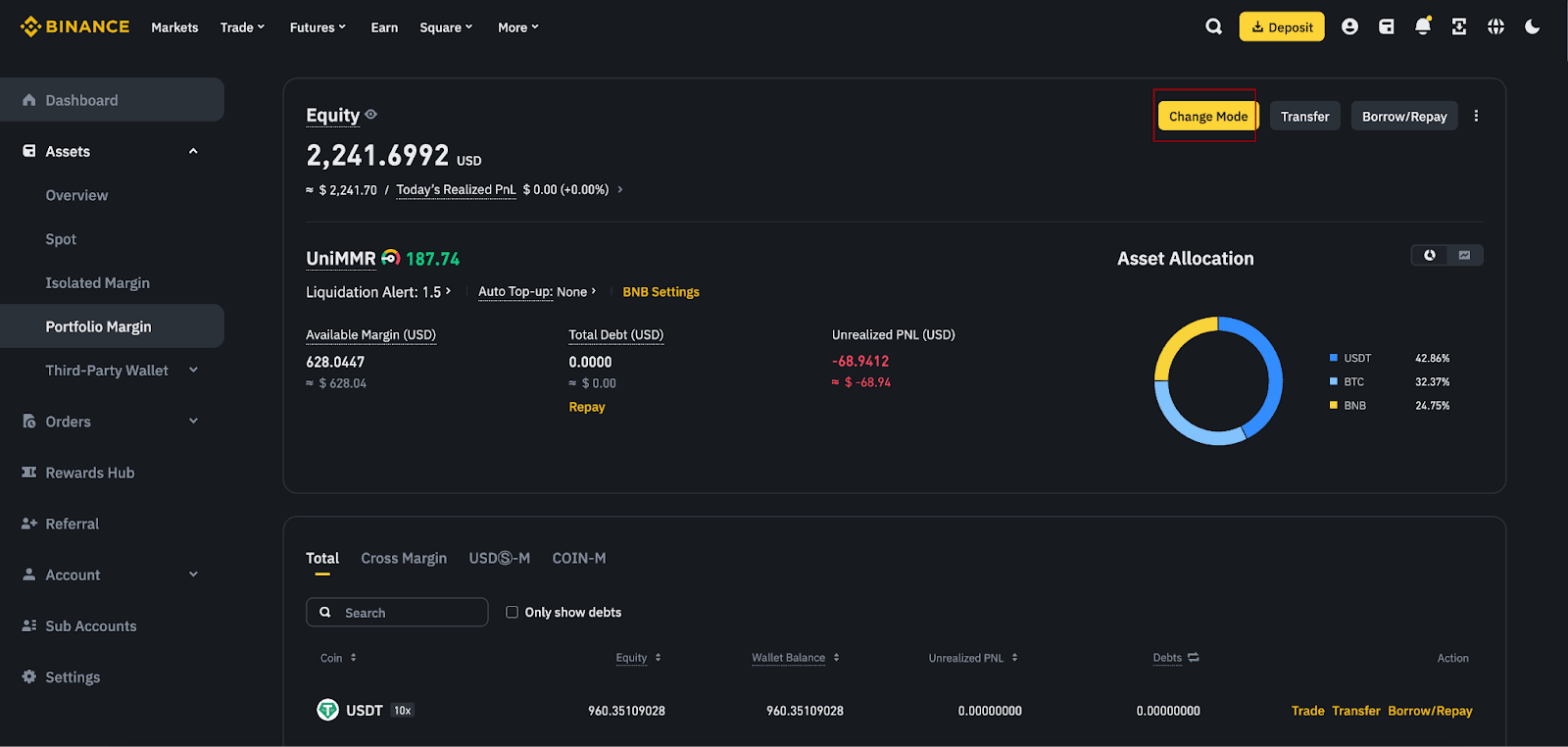
You can also activate the Portfolio Margin from your Wallet page by clicking [Assets] - [Futures]. If you meet the eligibility criteria, the [Change Mode] button will be displayed on the right side of the page.
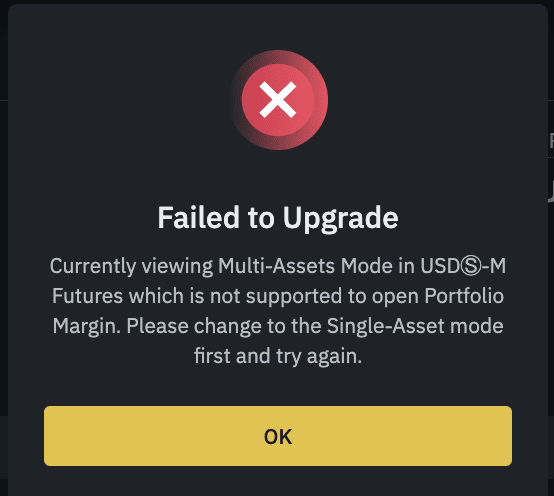
Note that if you’re not eligible to activate the Portfolio Margin mode, you’ll receive an error code. Before attempting the upgrade again, please refer to the error message for guidance on the necessary action.
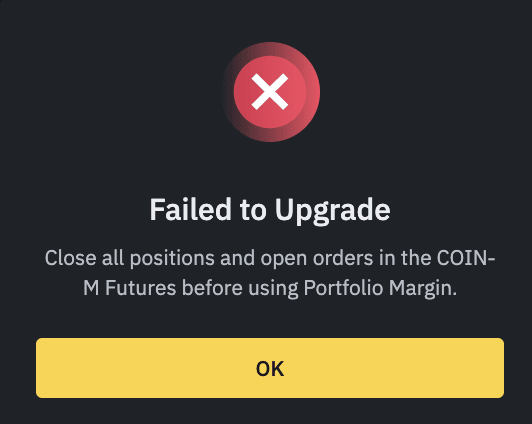
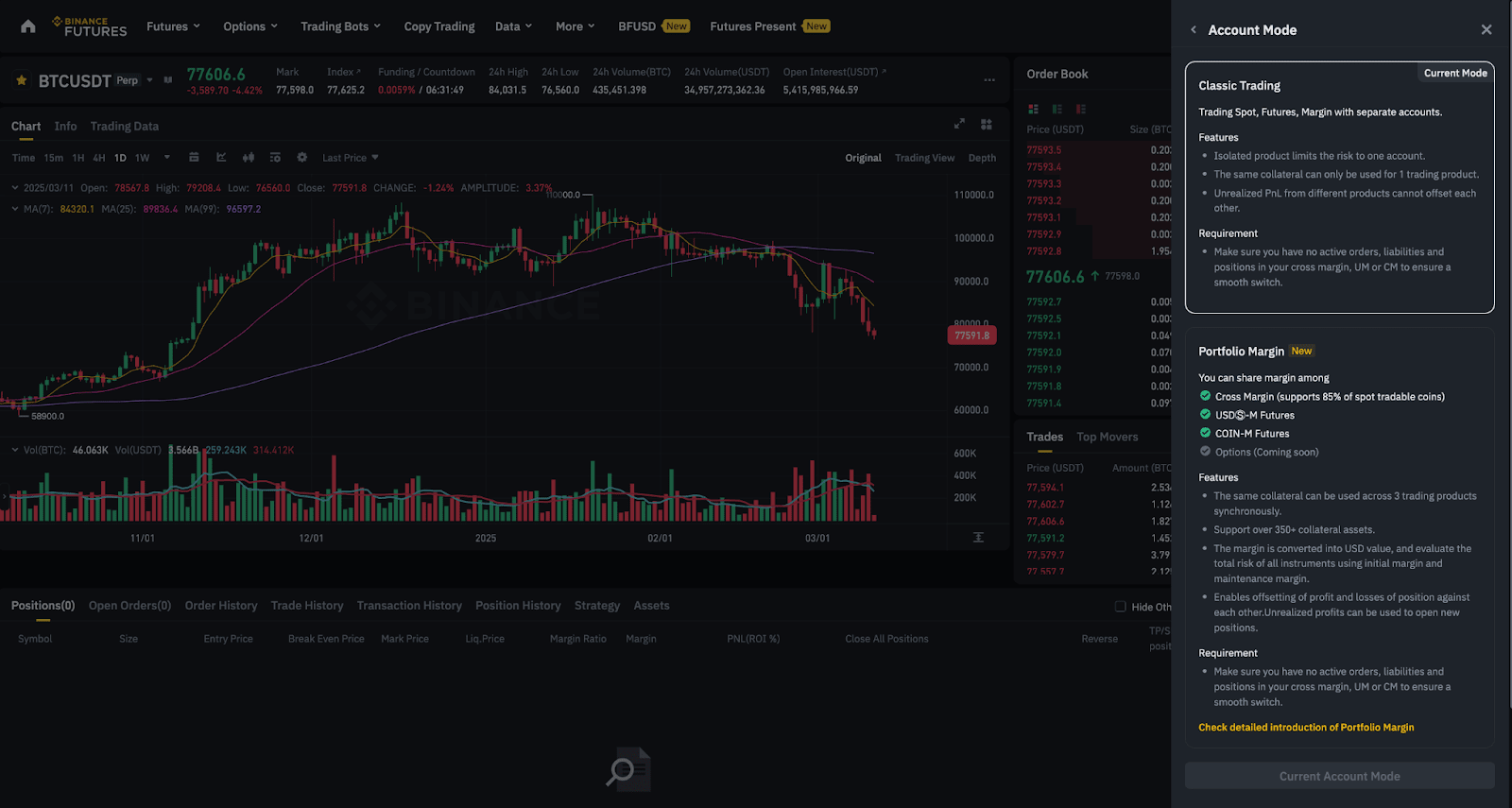
Once activated, you’ll see the general information regarding the Portfolio Margin mode.
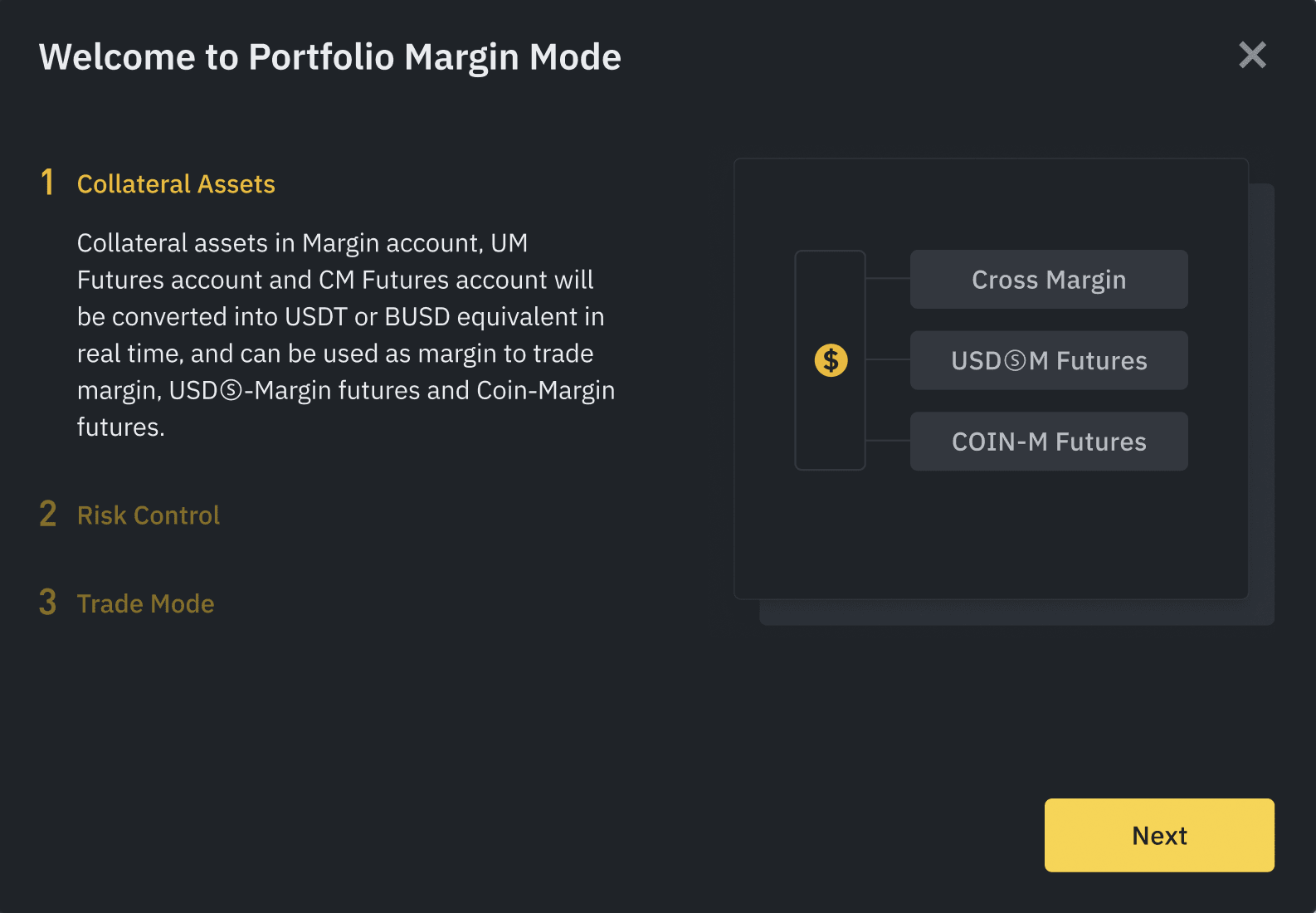
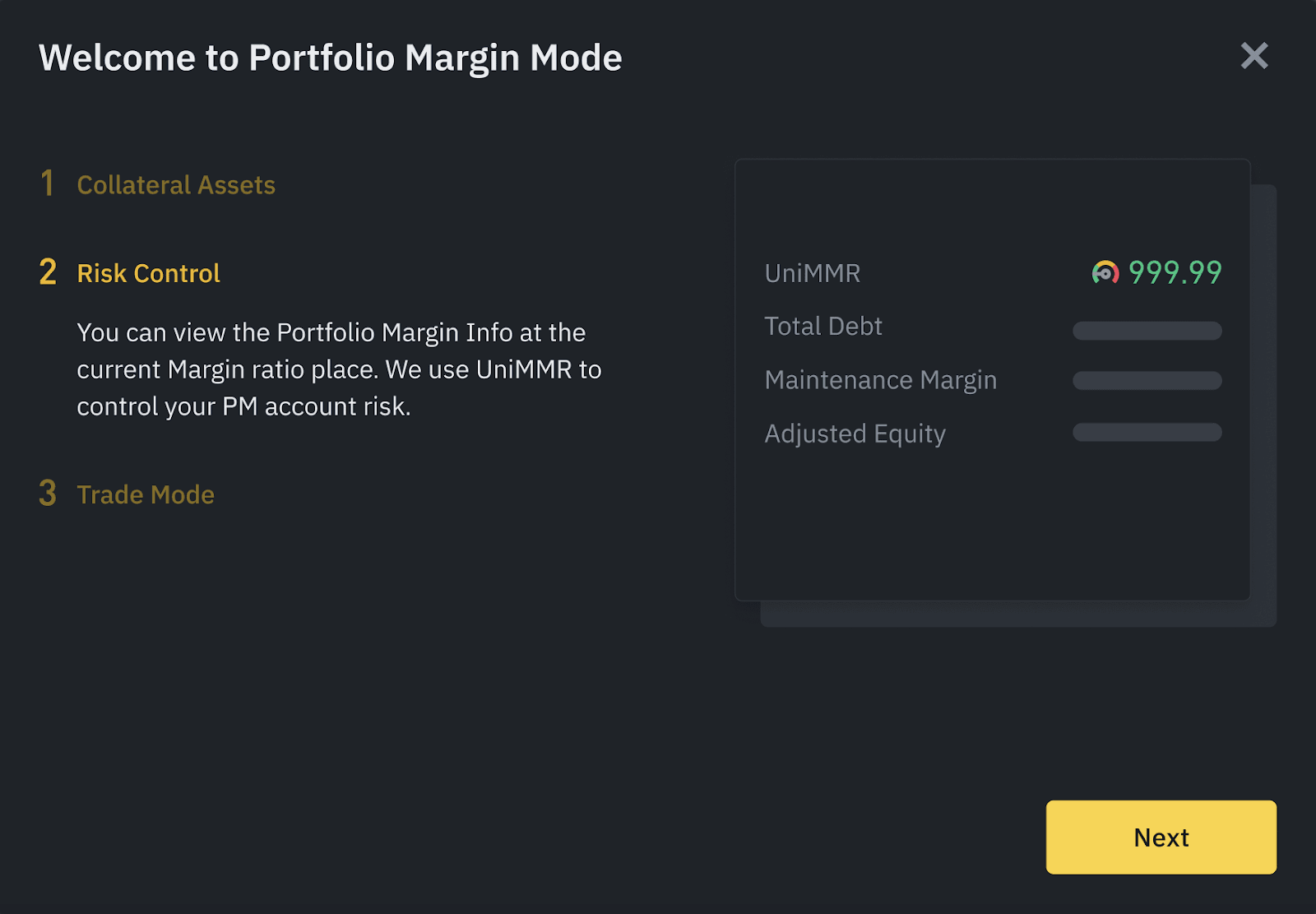
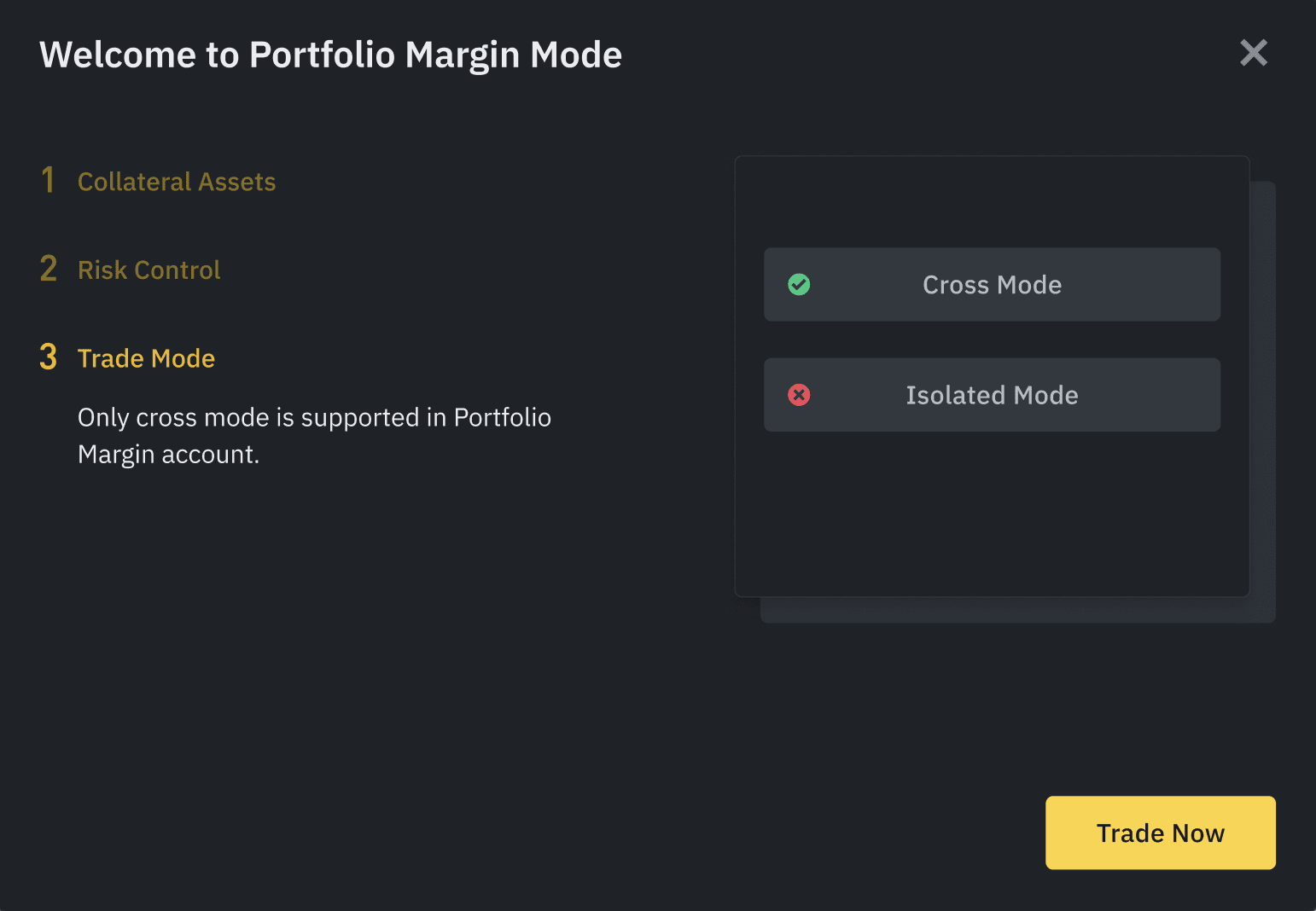
The Portfolio Margin Information (UniMMR, Total Debt, Maintenance Margin, Adjusted Equity) will be displayed in the lower right corner of the trading interface.
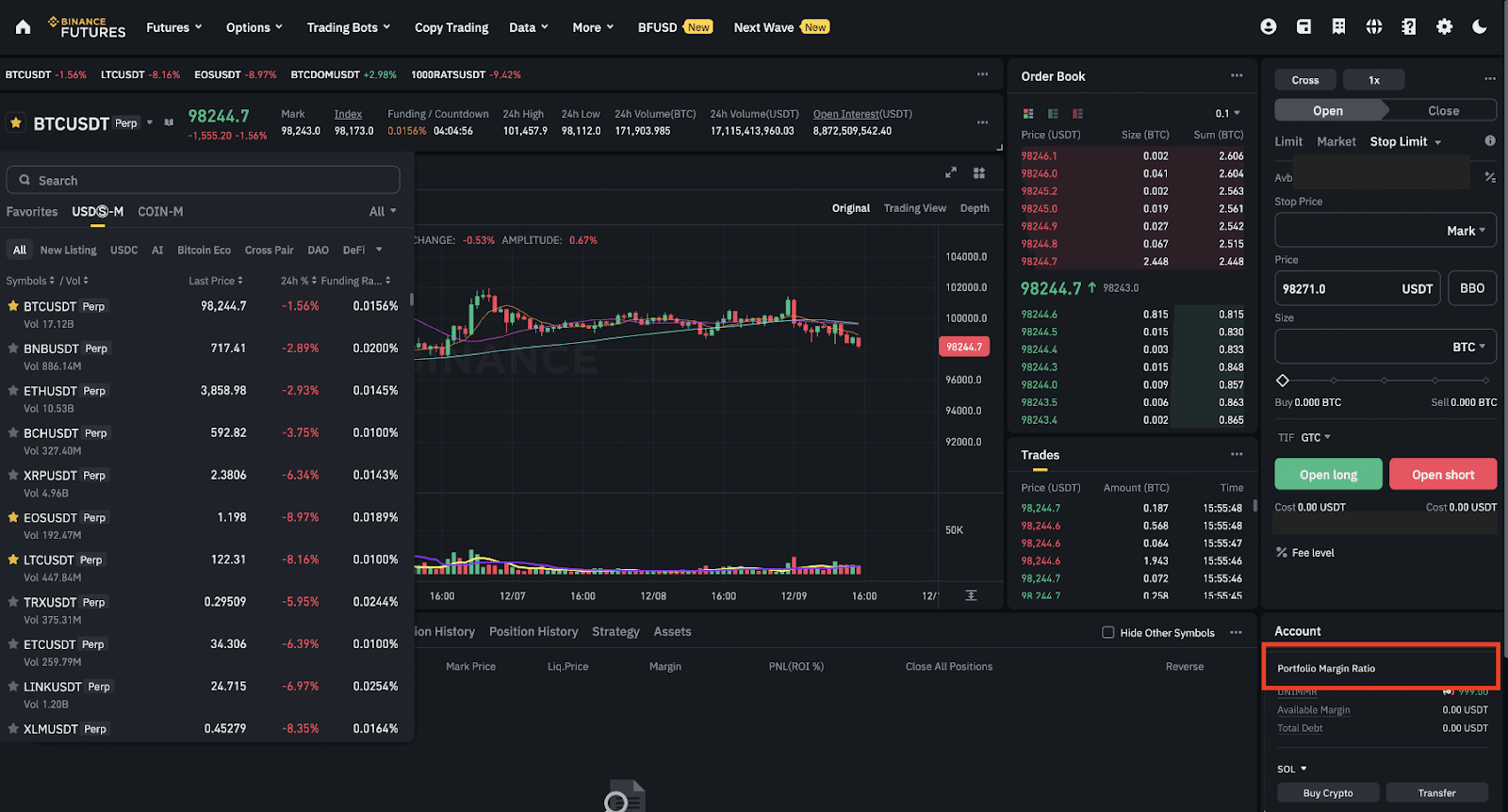
Your funds in Futures and Margin Wallets will be moved to your Portfolio Margin Account.
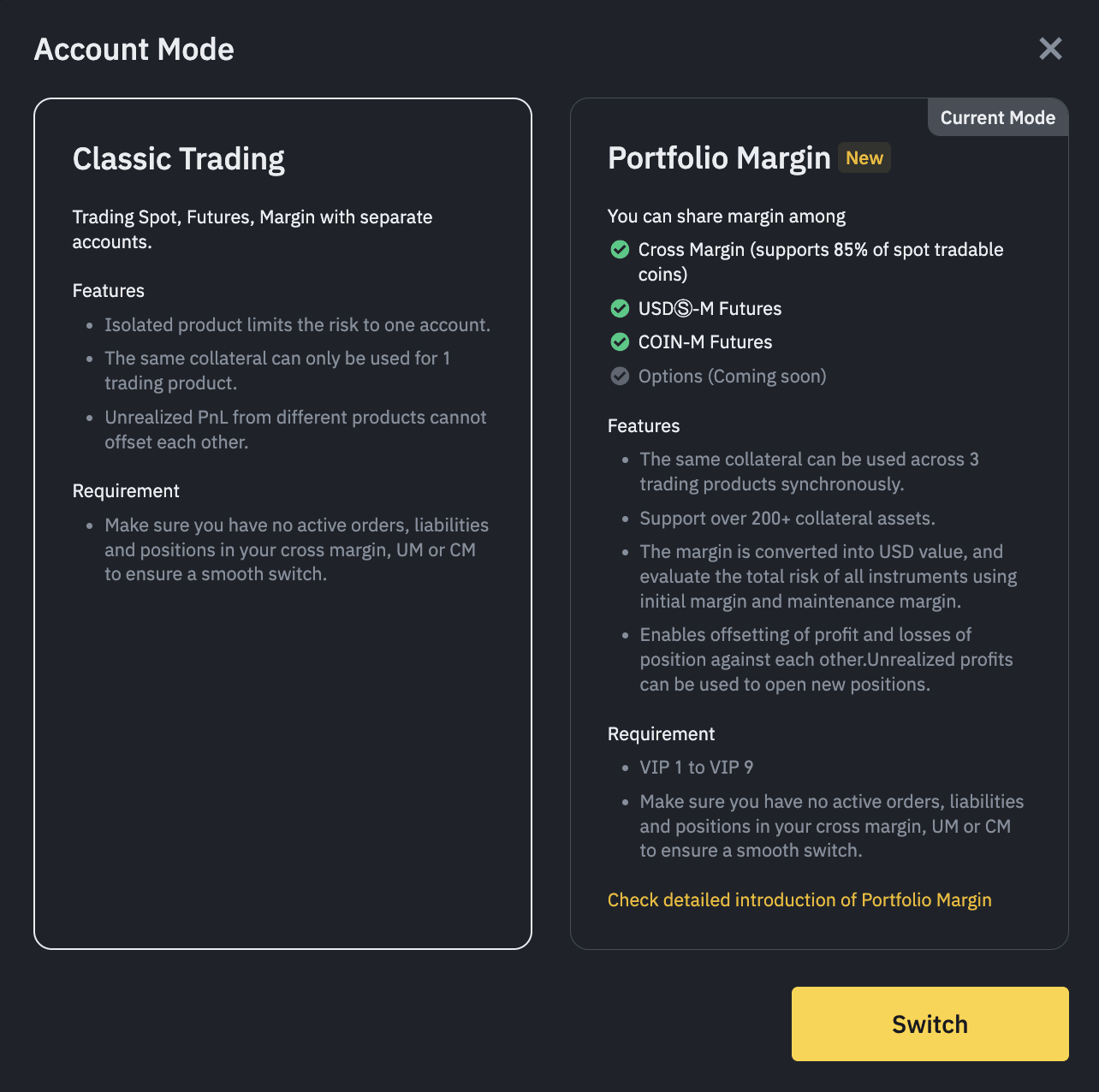
1. Hover over the [Settings] icon and click [Account Mode] under [Features].
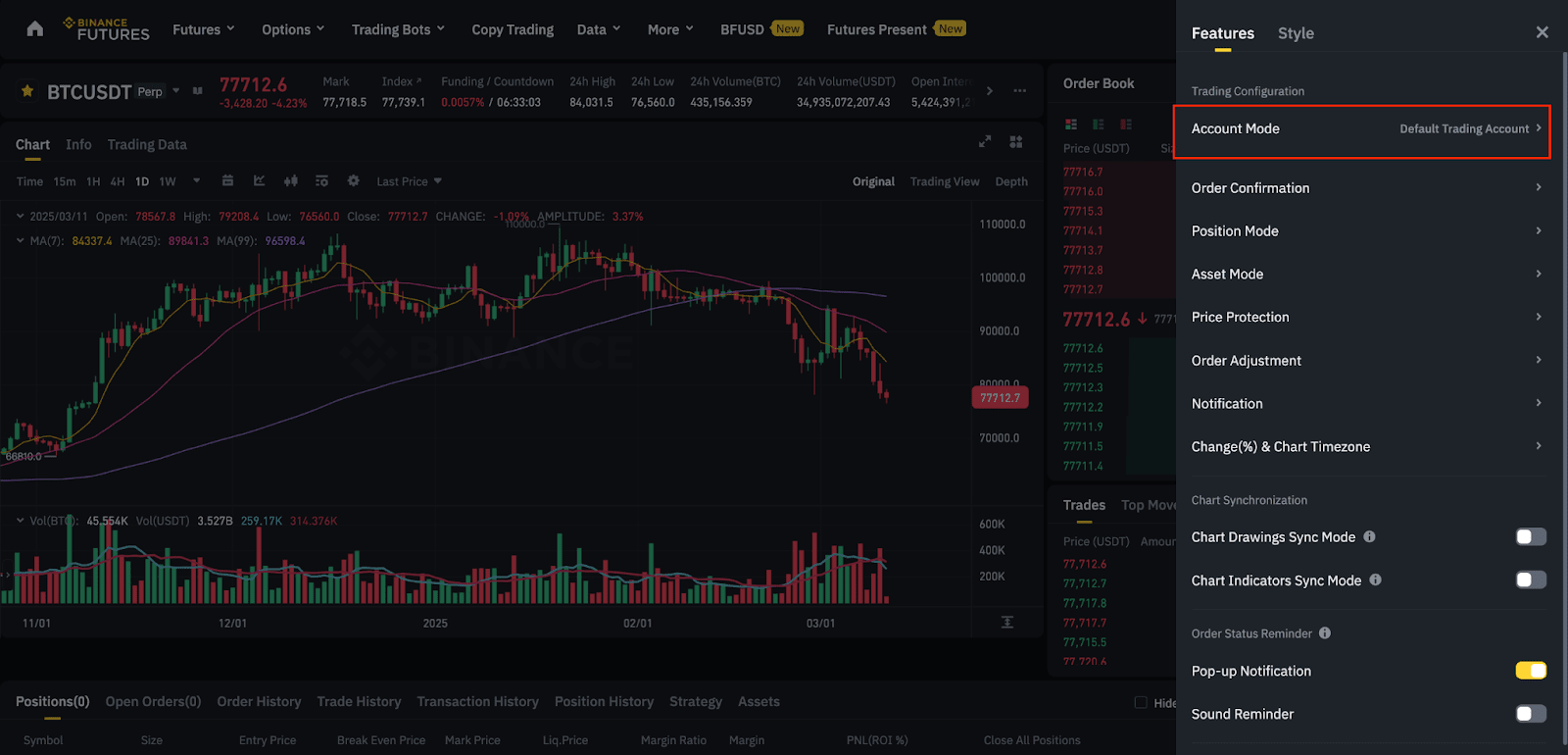
2. View your current mode and switch from one mode to another.
1. Mouse over the wallet icon and click [Portfolio Margin] - [Change Mode].
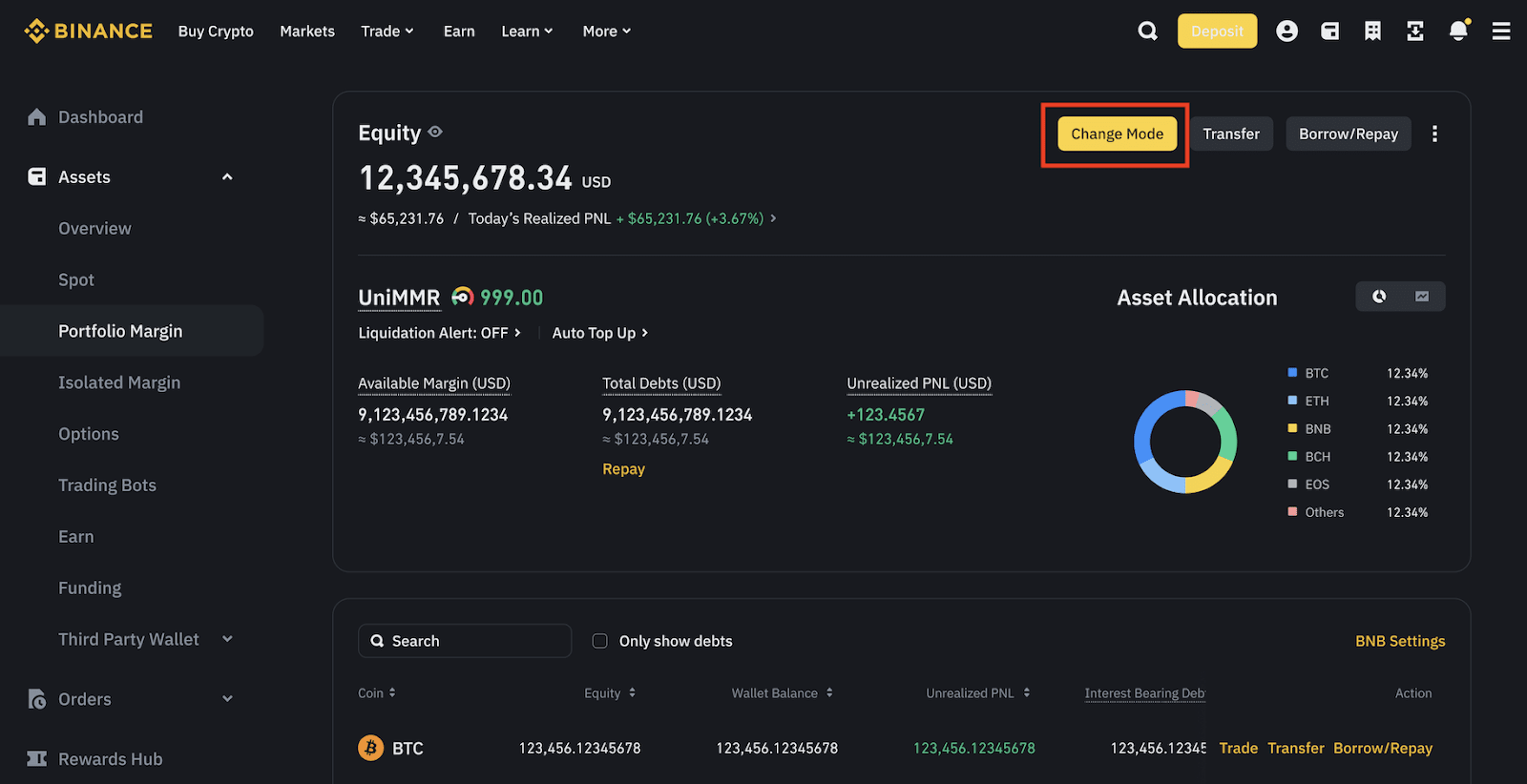
2. Click [Switch].
Important notes:
You can enable the Portfolio Margin mode for your managed sub-accounts and virtual sub-accounts. Log in to the master account and go to [Account Management]. Click the icon under [PM] next to a virtual sub-account and select [Enable Portfolio Margin].
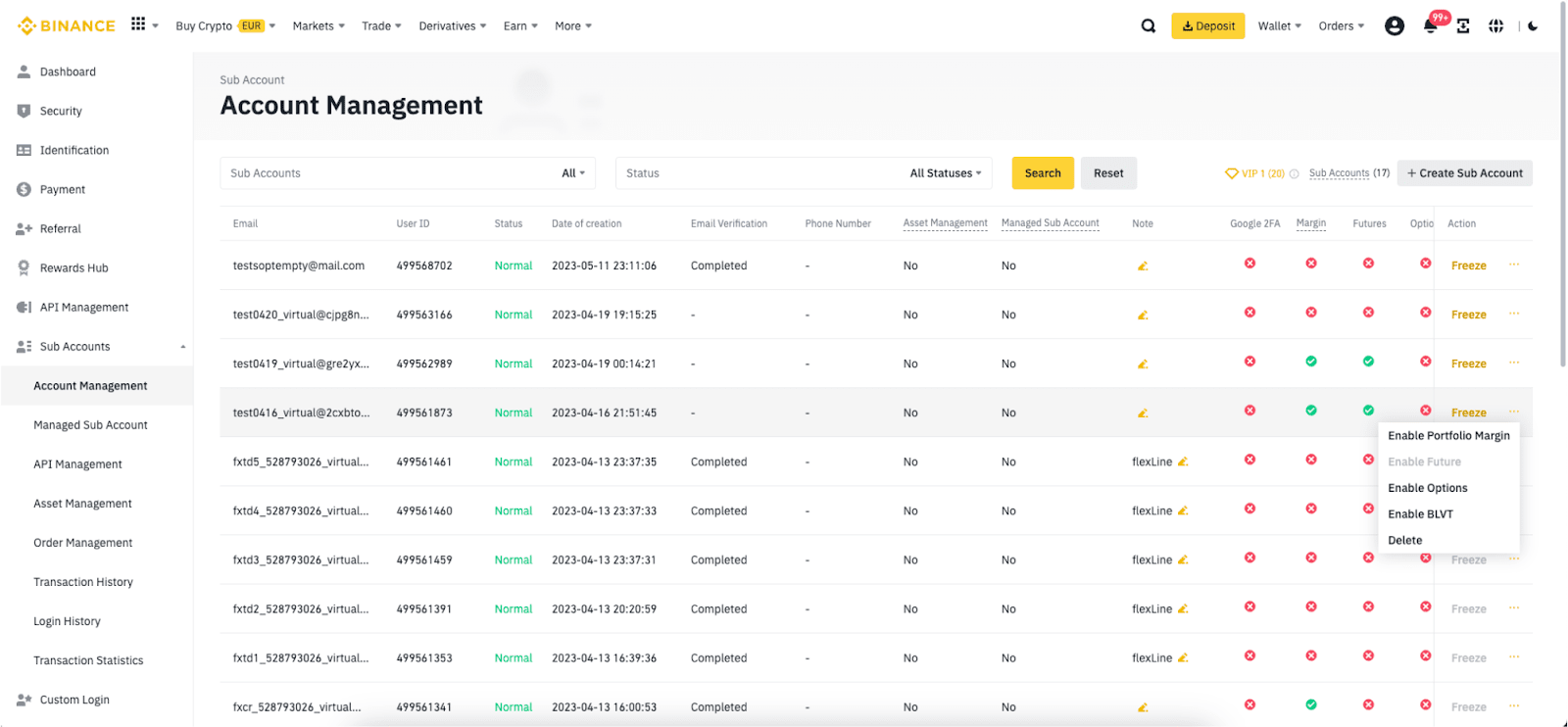
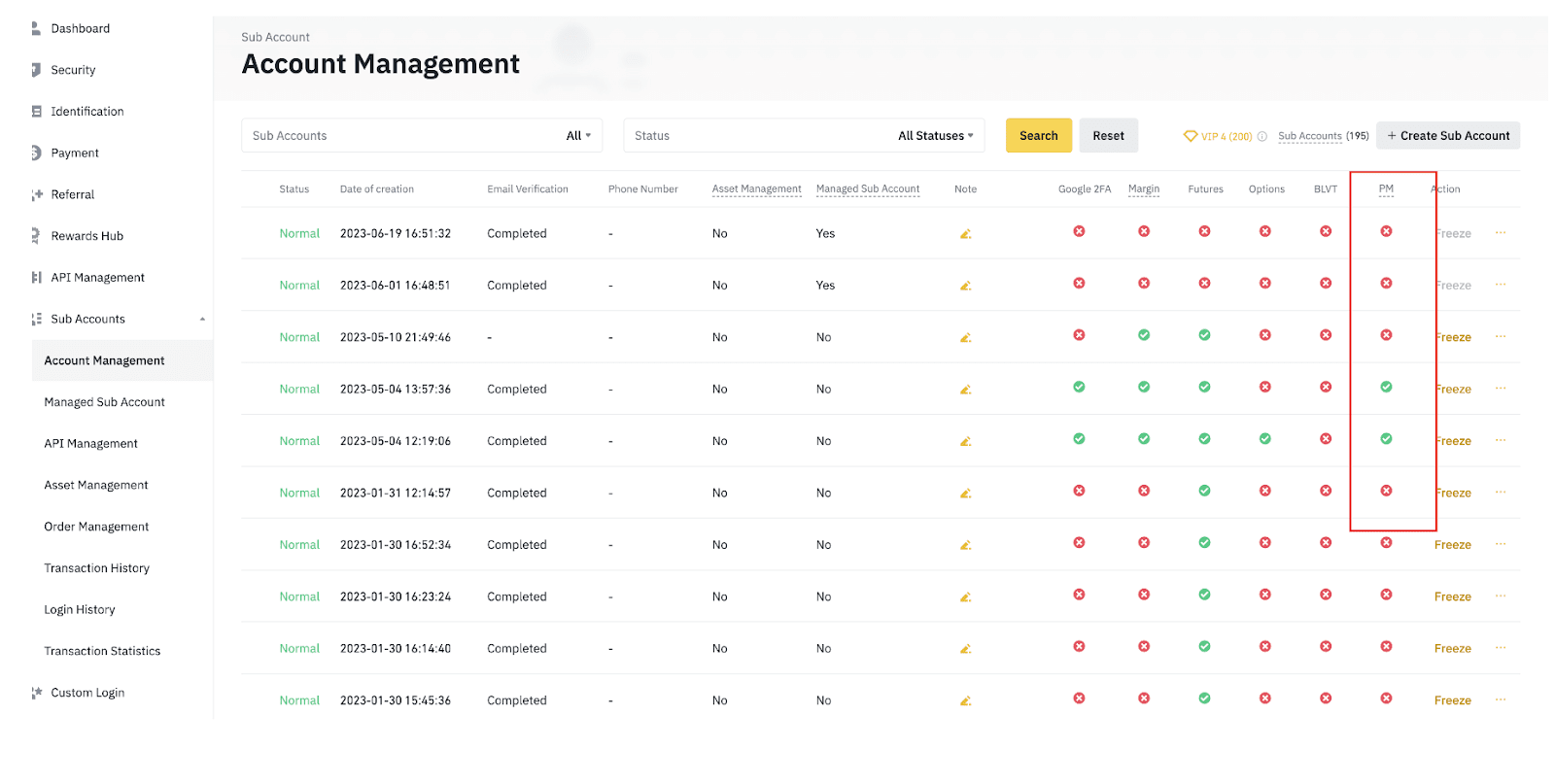
Please note that Portfolio Margin for managed sub-accounts can only be activated by trading teams.
For more details on the Binance Portfolio Margin Program, please refer to:
