Disclaimer: In compliance with MiCA requirements, unauthorized stablecoins are subject to certain restrictions for EEA users. For more information, please click here.
Disclaimer: This FAQ Page is for general information and educational purposes only. It does not constitute legal terms or any form of legal agreement between you and Binance. It should not be construed as financial, legal or other professional advice. The information on this page may be outdated. For legal terms applicable to Futures and Options Trading Services, please refer to the Terms of Use, the Exchange Rules (including the Exchange Procedures) and the Clearing Rules (including the Clearing Procedures) which come into effect on 5 January 2026. Additional terms and conditions will also be set out in the Contract Specifications applicable to the relevant Derivatives contract.
Understanding your Portfolio Margin information is important to manage risks well and make smart choices when trading. This article will show you how to check your Portfolio Margin information from your Binance account and trading page.
1. Log in to your Binance account and mouse over the wallet icon. Click [Portfolio Margin].
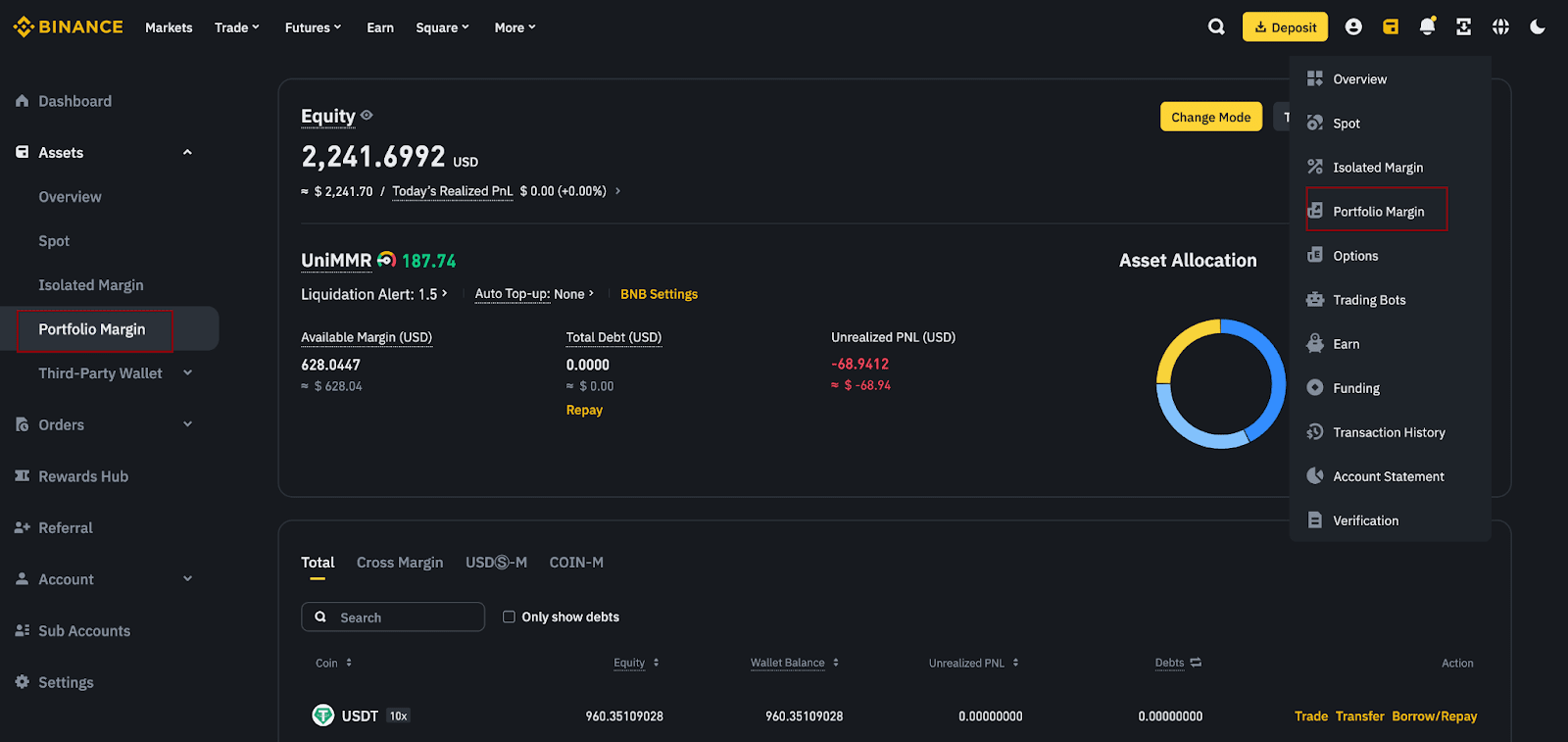
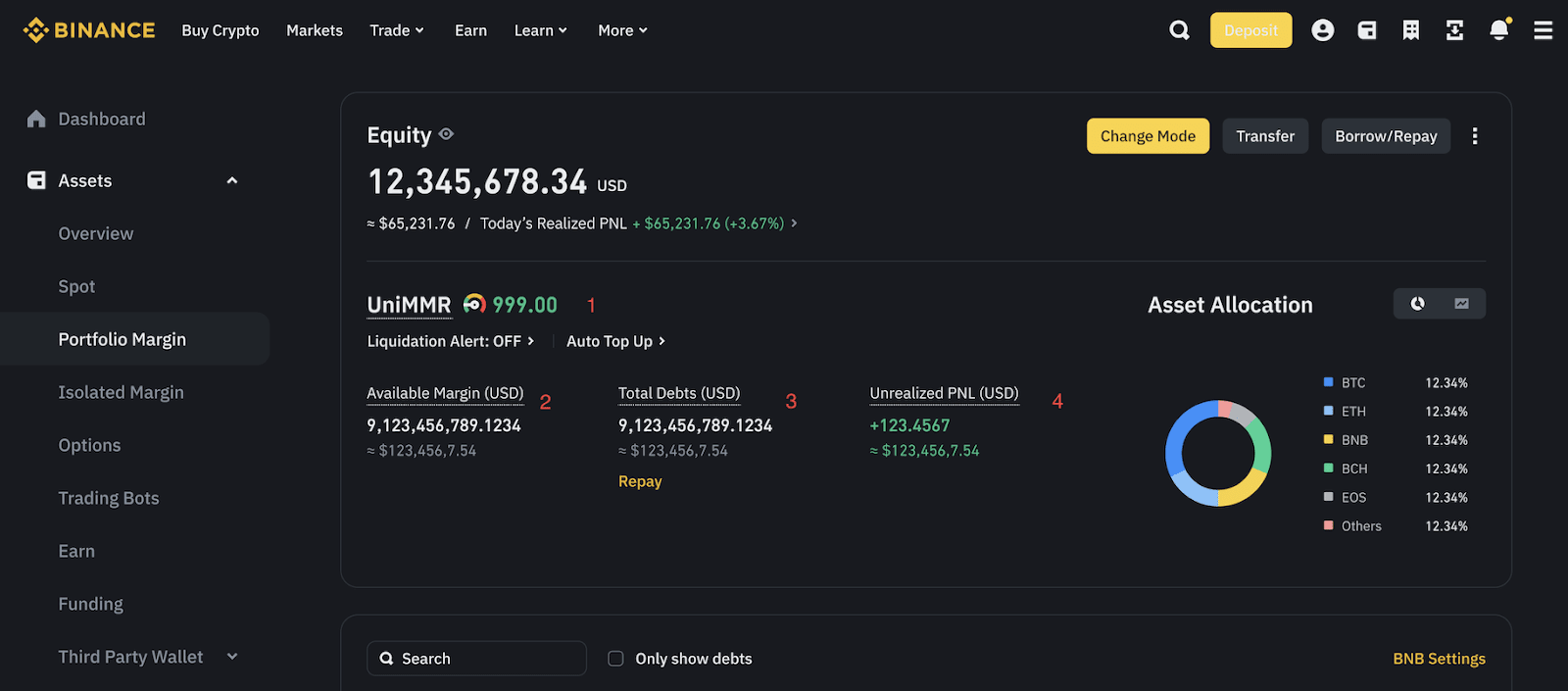
2. You’ll see data points related to your Portfolio Margin account.
*All data points are in USD, except for Unified Maintenance Margin Ratio (uniMMR):
1. Log in to your Binance account and go to [Trade] - [Margin].
2. Select a trading pair from the [Trade] menu or find your preferred trading pair using the search bar.
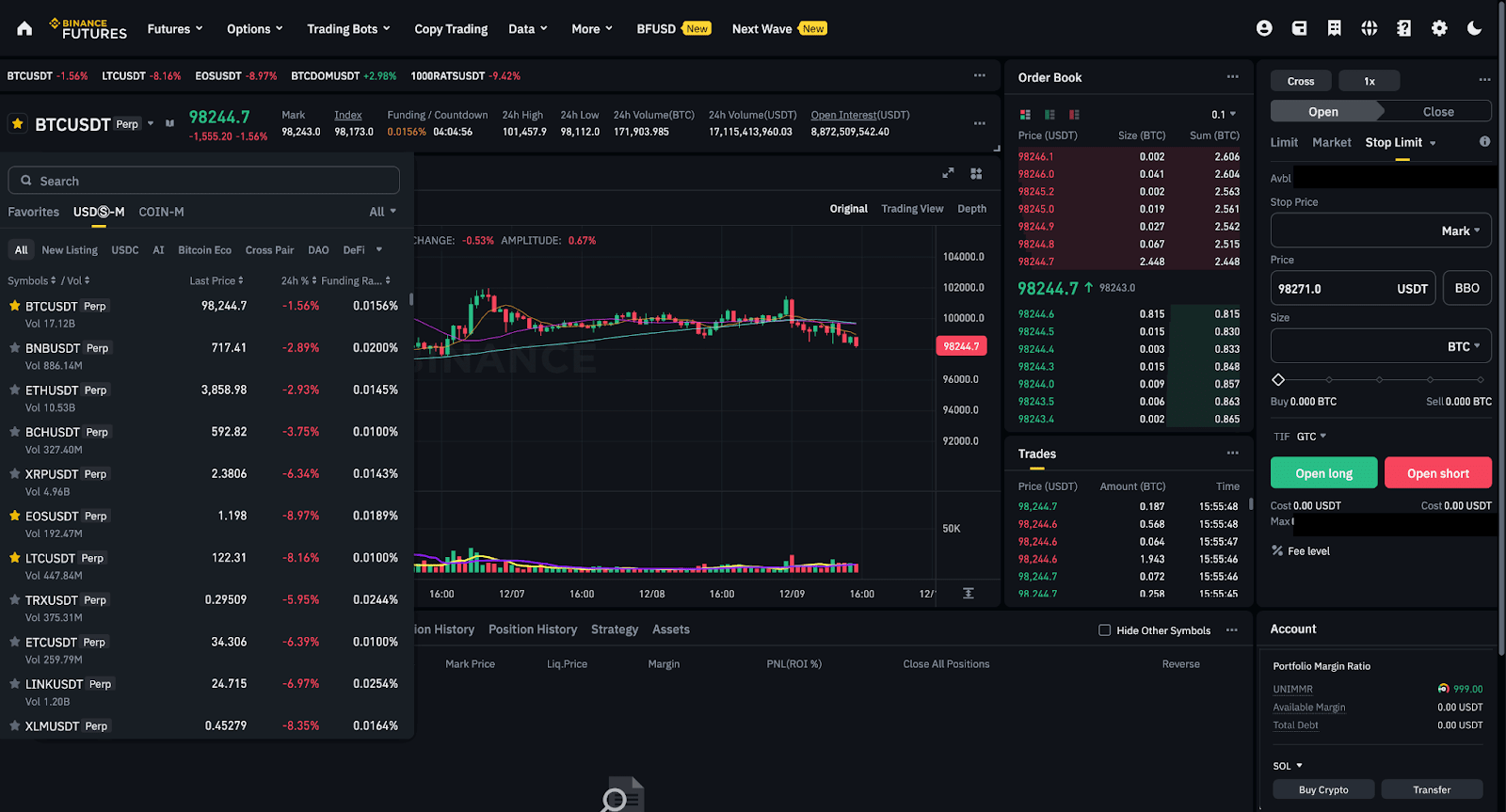
3. You can find the [Portfolio Margin Info] dashboard on the lower right corner of the trading page.
This section will display your Portfolio Margin information, including uniMMR (1), Available balance (2), Total Debt (3). It’s important to keep a close eye on these values so that you can manage your risk effectively and make informed trading decisions.
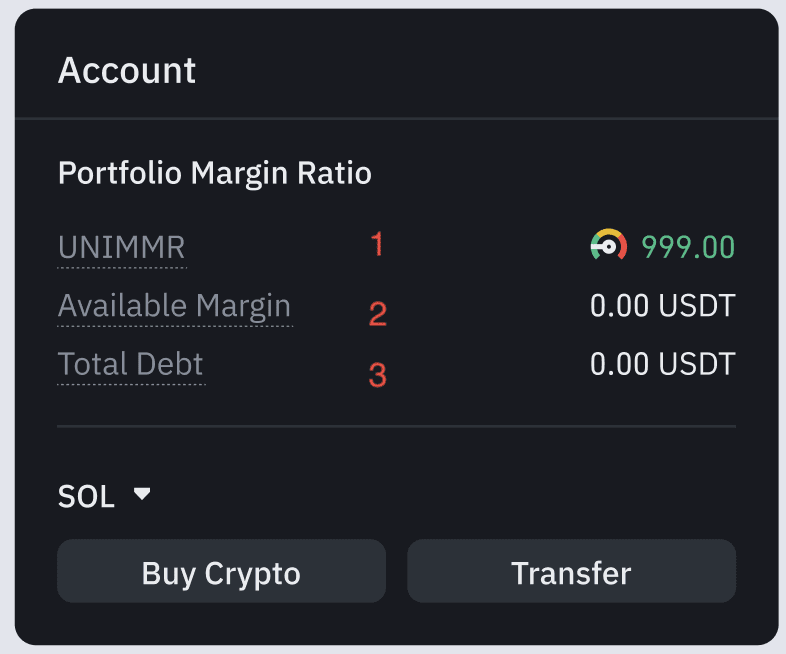
You can also easily view your available balance and your unrealized PnL to monitor your position's performance.
For more details on the Binance Portfolio Margin Program, please refer to:
