

Introduction
Binance Chain Wallet is the official Binance cryptocurrency wallet for accessing Binance Smart Chain, Binance Chain and Ethereum. You can use it to store your cryptocurrencies securely and connect to thousands of projects on different blockchains.
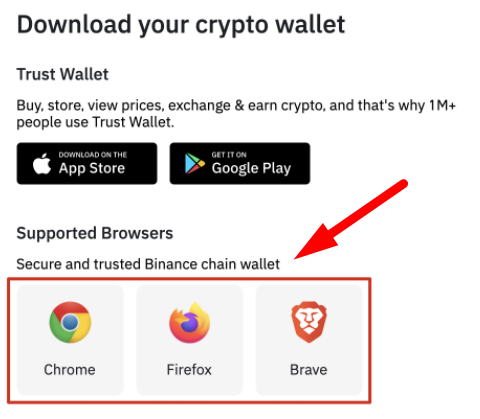
Whether you want to exchange BNB for other tokens, create NFTs or do yield farming, everything is easy with this wallet as an extension for your browser. Currently, Binance Chain Wallet supports Chrome, Firefox, and Brave.
What makes Binance Chain Wallet unique?
At first glance, the Binance Chain Wallet looks like other wallets in the form of a browser extension. There are, however, a few features that differentiate the Binance Chain Wallet from others. If you already have a Binance account, you can easily link it to your wallet with Wallet Direct. This feature saves you from copying and pasting addresses when transferring digital assets between your account and wallet.
You can also use your Gmail account to register for the wallet via tKey. If you lose access to your wallet, you can recover it using two of the following three methods:
Login to your Gmail account
Using a local device
With your account password created during setup
Keeping your private keys secure is an important responsibility, which is why using tKey can be helpful.
These two features make the Binance Chain Wallet extremely easy to use for users unfamiliar with cryptocurrency wallets and a quick way to get started.
Binance Chain Wallet Setup
1. Download the Binance Chain Wallet from the Binance Chain homepage. Simply choose the browser on which you want to install the extension.
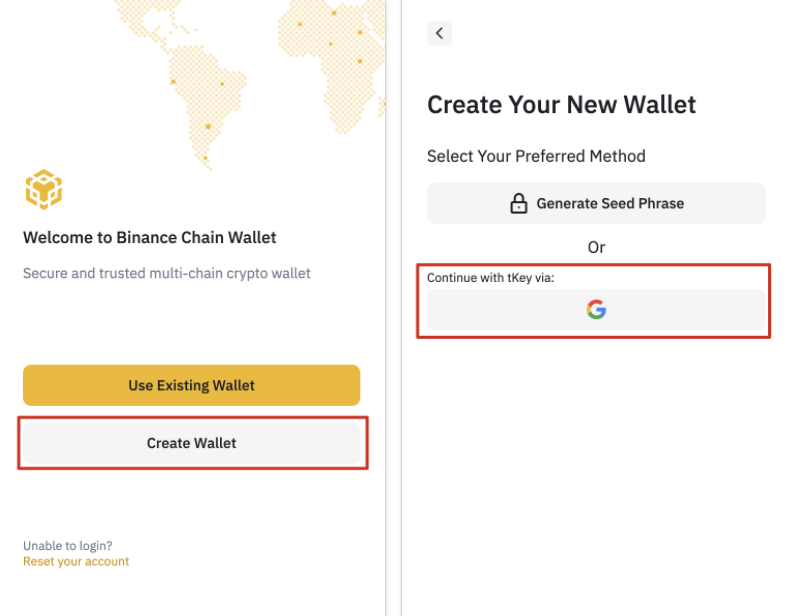
2. After installing the extension, you will see the registration page. In this example, we will create a brand new wallet with a Gmail account.
Note: You can also use an existing cryptocurrency wallet if you have your mnemonic phrase or tKey login credentials.
3. Click [Create wallet] and then select [Continue with tKey via: G].
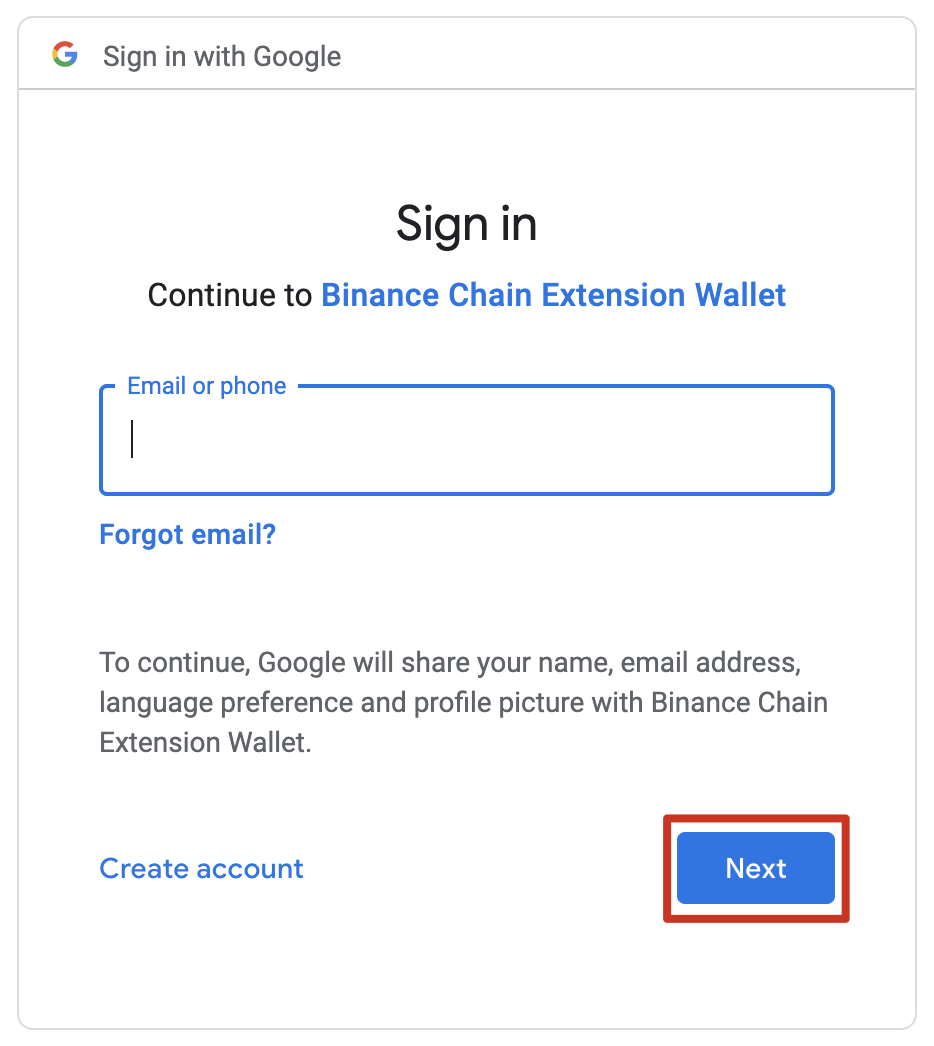
4. A pop-up will appear asking you to sign in using Gmail. tKey and Binance Chain Wallet will use your Gmail account as a way to authenticate you in the future, if necessary.
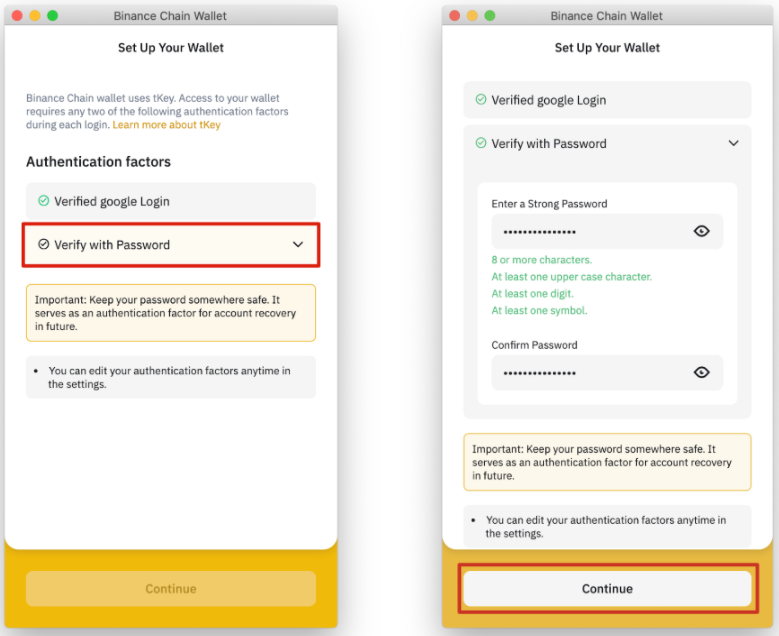
5. The next step is to create a password that can serve as a second layer of protection if you lose your private key.
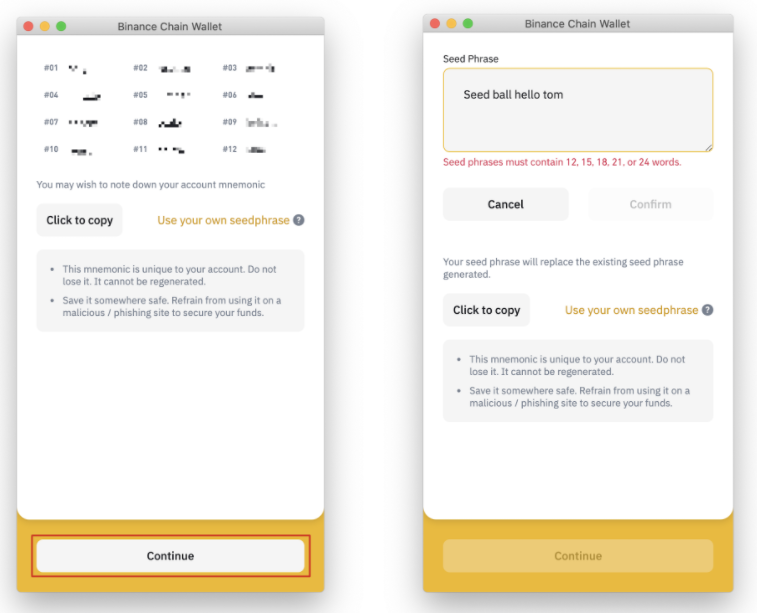
6. You will now see your Binance Chain Wallet mnemonic phrase, which you can use to recover your account. You also have the option of creating your own mnemonic phrase. In total, the sentence must contain 12, 15, 18, 21 or 24 words.
You should never share your mnemonic phrase with anyone. Treat it like a password or bank account PIN. If you lose it, you can still access your Binance Chain Wallet using your email address in combination with your tKey password.
7. Click continue once you are sure you have stored the mnemonic phrase safely.
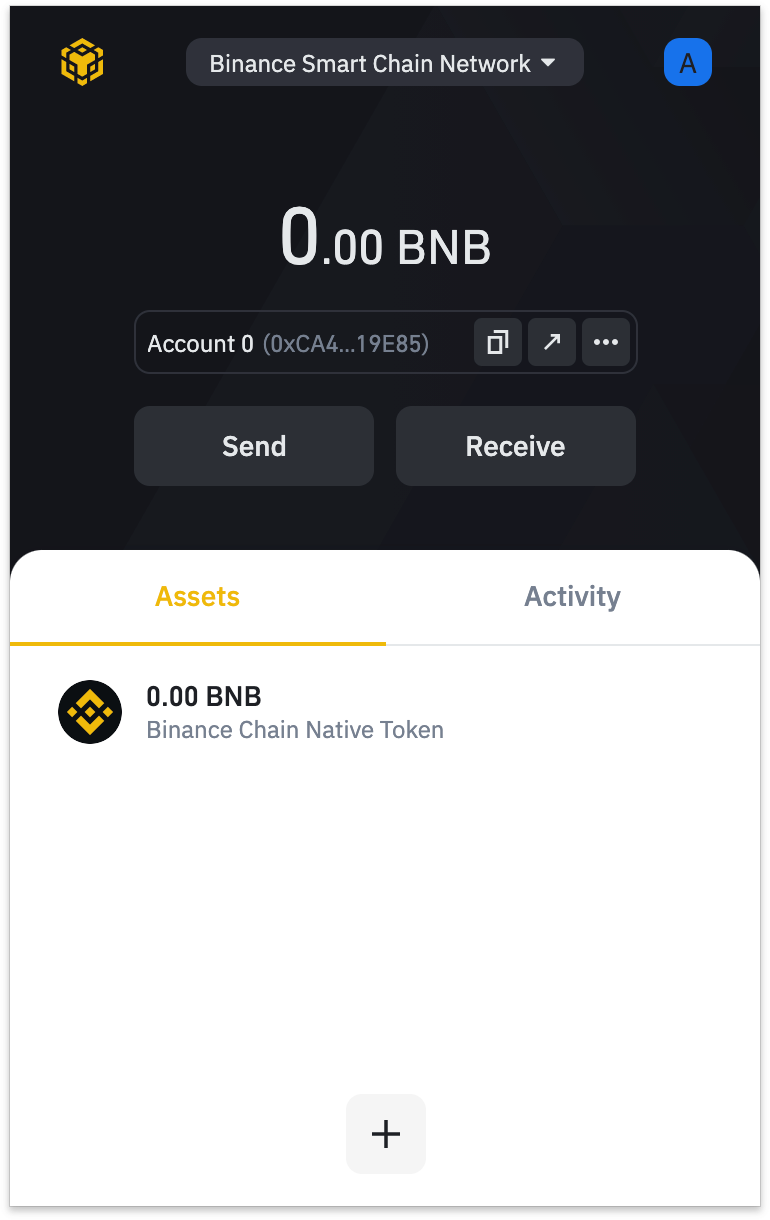
8. You have successfully set up your Binance Chain Wallet. You can now use it to send and receive BSC, Binance Chain and Ethereum tokens. You can also interact with DApps and smart contracts on these blockchains.
Deposit BNB with Wallet Direct
If you want to use and interact with the Binance Smart Chain network, it is essential to hold BNB in your wallet. You can pay transaction fees in BNB when you make transfers and interact with smart contracts. There are two types of BNB tokens: BEP-20 and BEP-2. Since we want to interact with BSC in this case, we need to use BNB BEP-20 tokens.
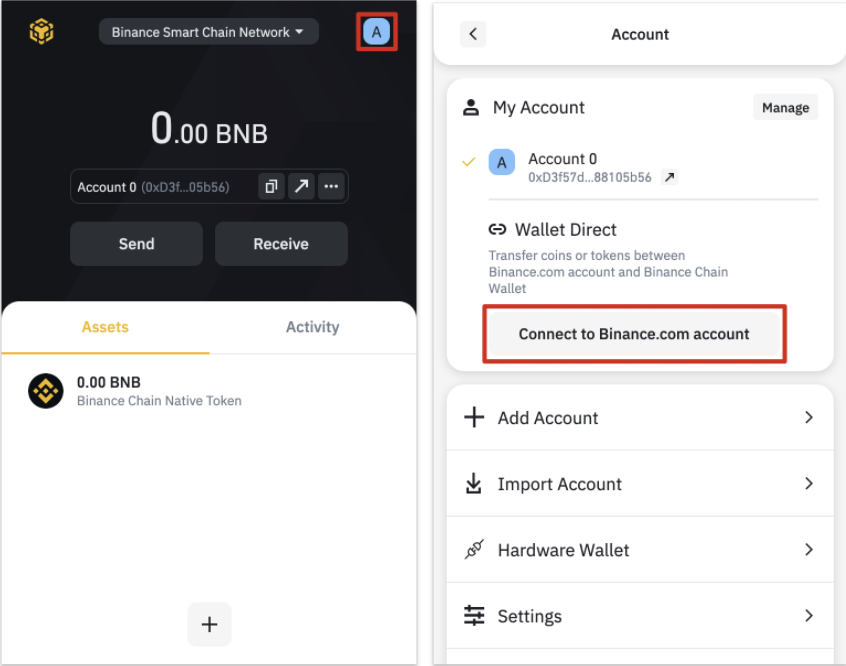
If you already have BNB in your Binance spot wallet, you can connect your account to your Binance Chain Wallet using the [Wallet Direct] feature.
1. Click the icon at the top right of the wallet home page, then click [Connect to Binance.com Account].
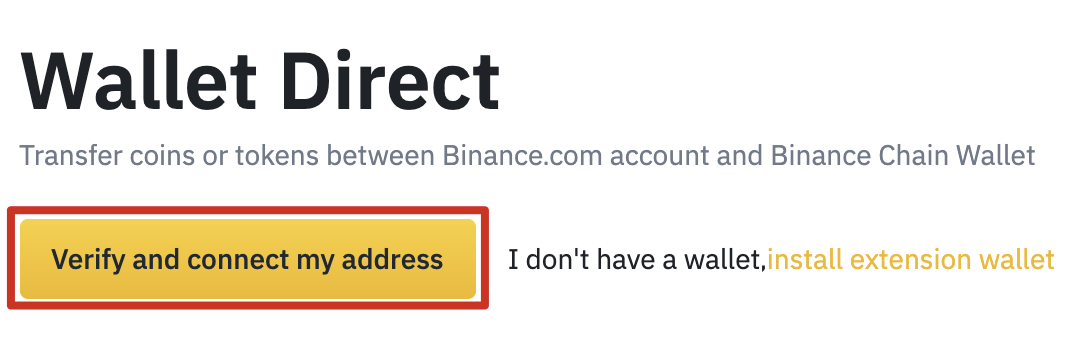
2. Log in to your Binance account and click [Verify and connect my address].
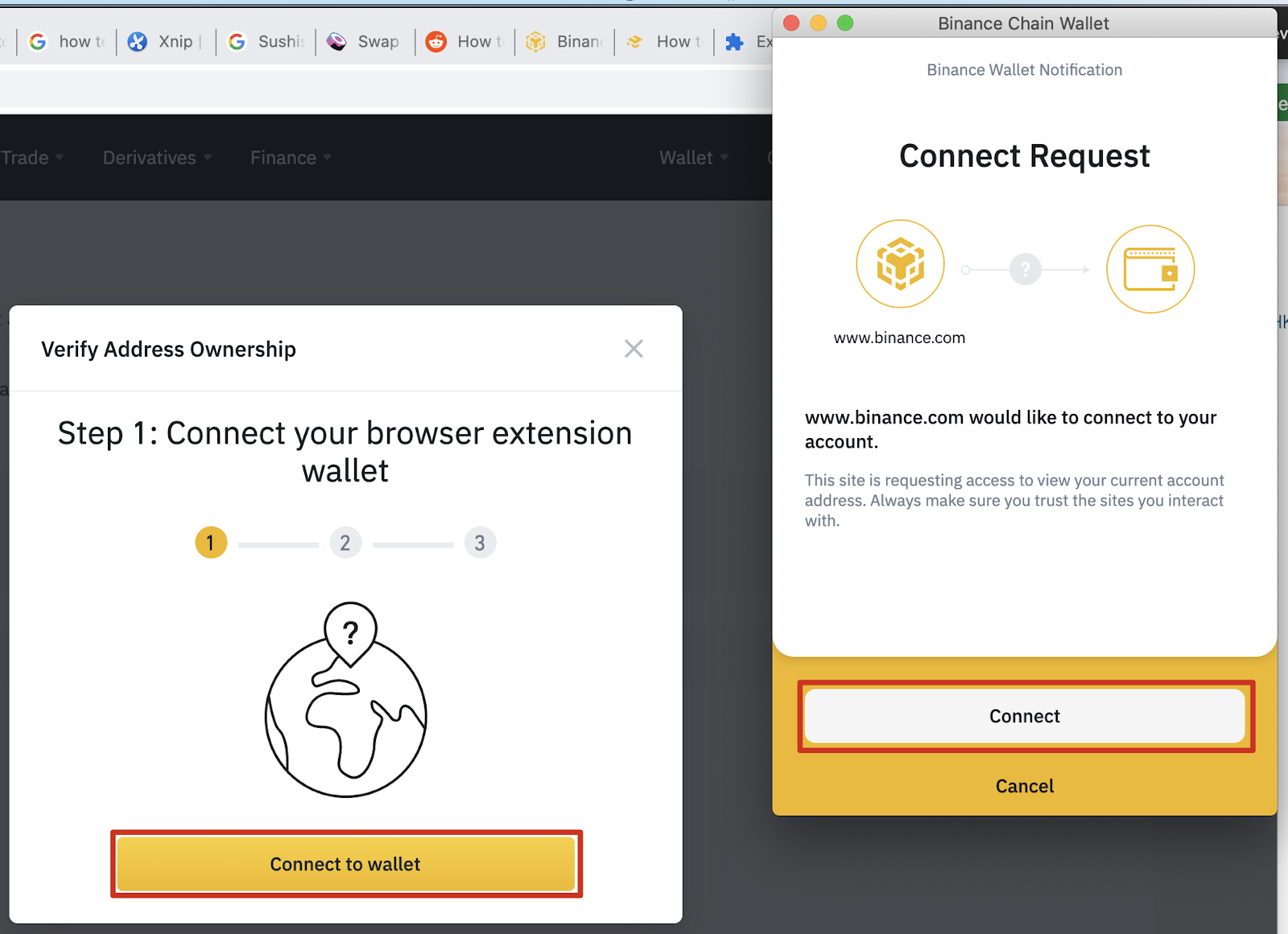
3. You will now see a pop-up asking you to [Connect Wallet]. Clicking on it will open the Binance Chain Wallet, where you can click [Connect].
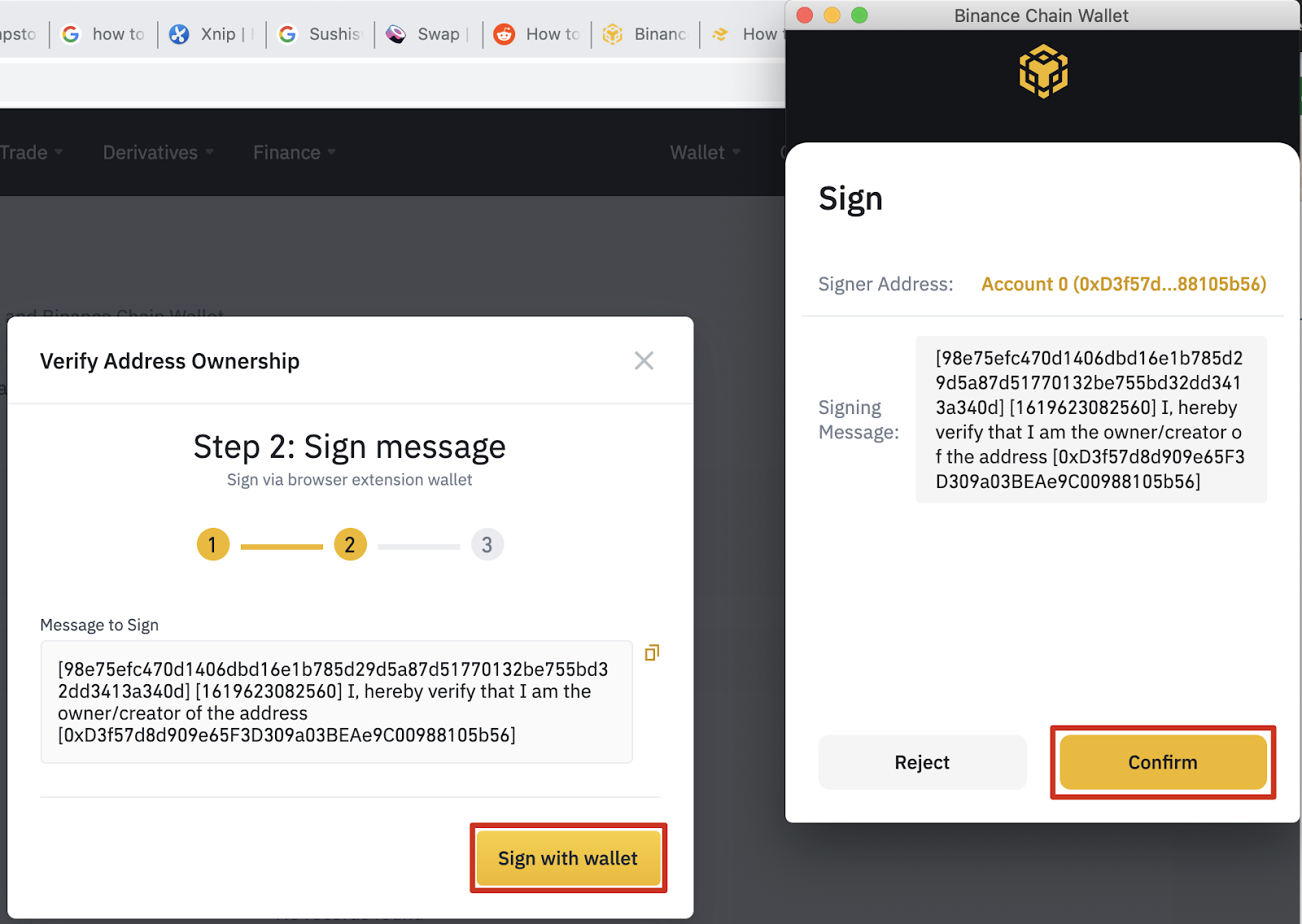
4. Next, you will need to give permission to your wallet to sign the message from Binance. This step verifies that you are the owner of the wallet and authorizes it to connect.
5. Once you have completed the previous steps, you will need to go through Binance's authentication process as a final security measure. If you have enabled 2FA on your account, you will need to use that as well.
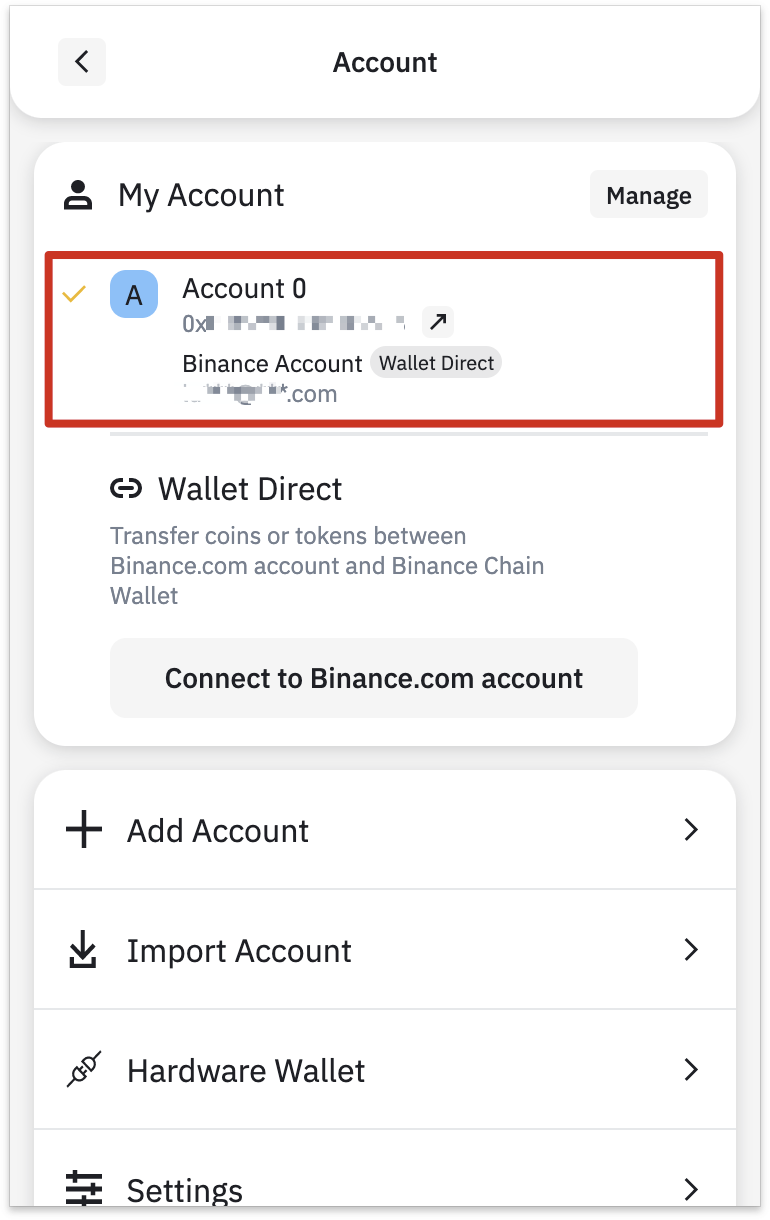
6. After successful verification, your Binance account will be linked to your wallet. You can see it in the “Account” section of your wallet or on the Wallet Direct web page.
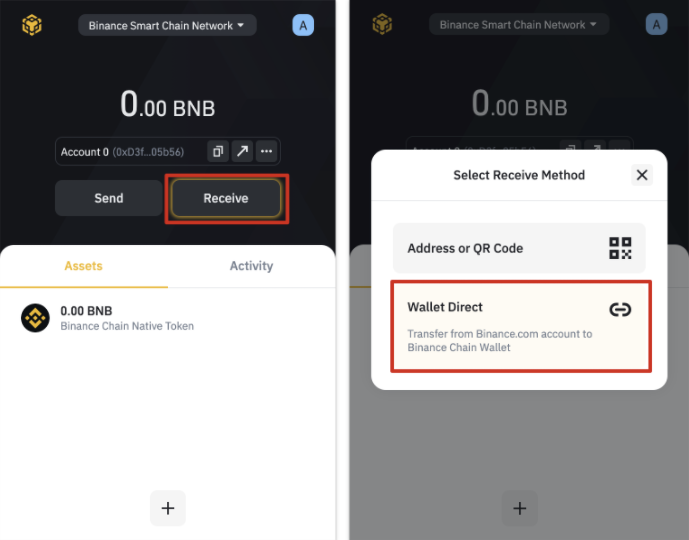
7. To start transferring money from your Binance account, click the [Receive] button and choose [Direct Wallet].
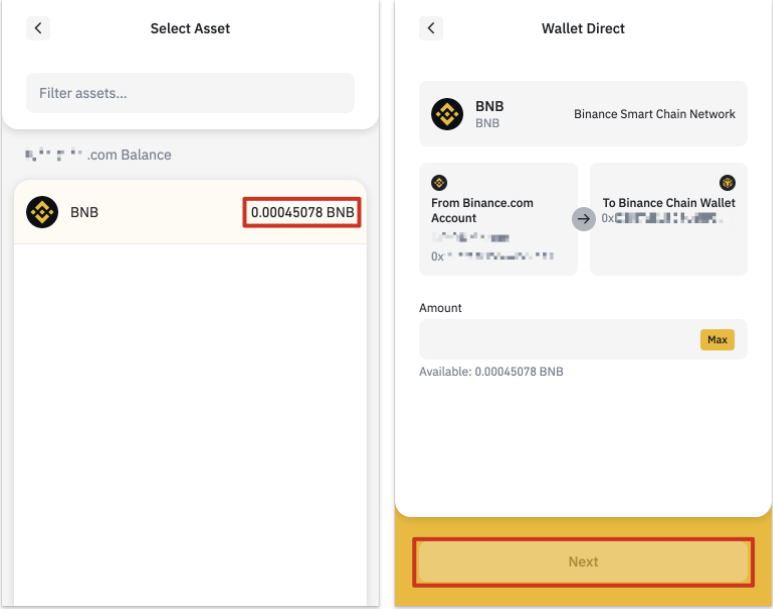
8. You will now see the balance of your assets available to transfer.
Deposit from another wallet
You can also deposit directly from another wallet. In this example, we will transfer BNB from our Binance account wallet to the Binance Chain Wallet.
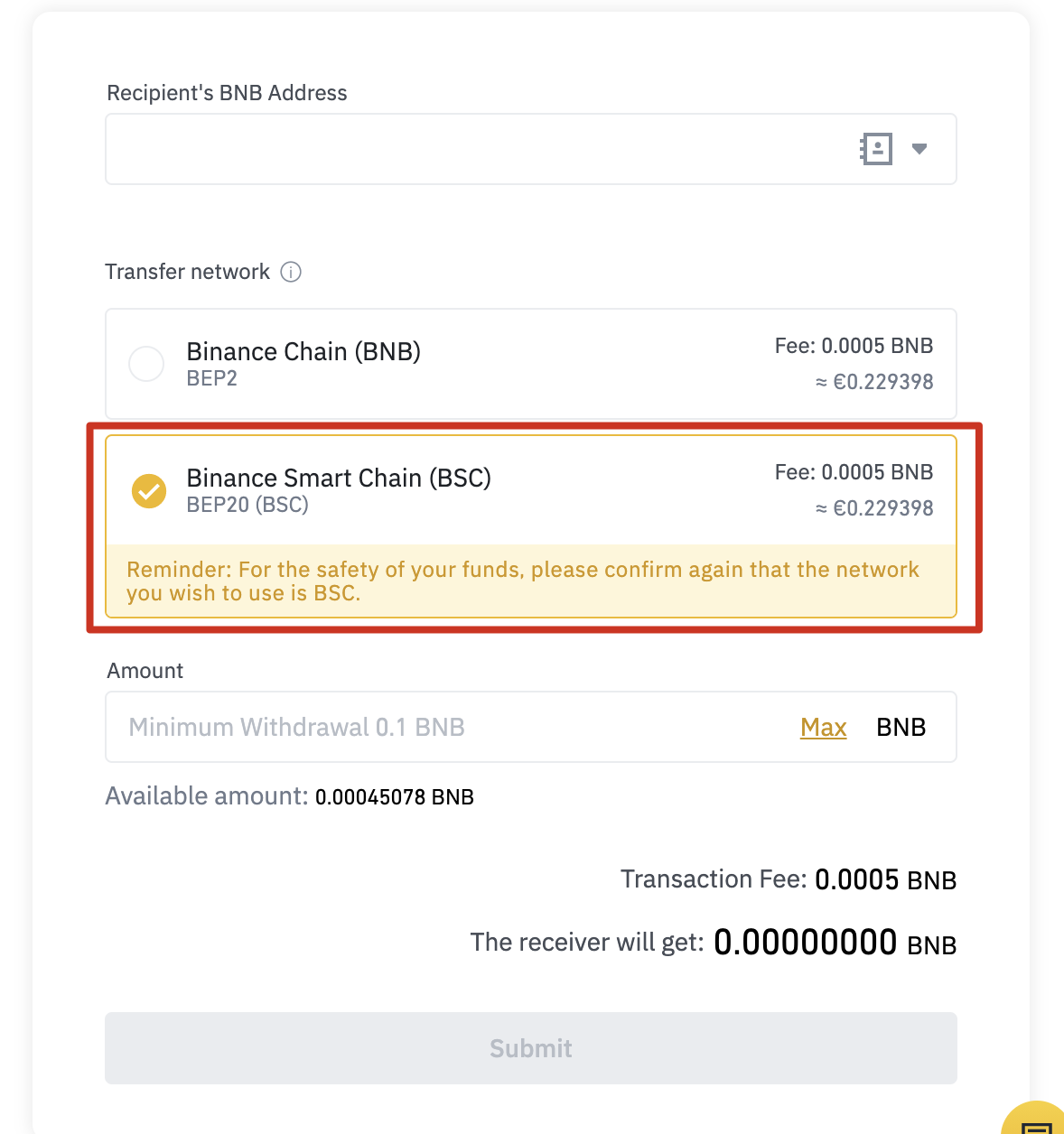
1. Go to your Binance account withdrawal page and select the BEP-20 (BSC) network.
2. On your Binance Chain Wallet, click [Binance Chain Native Token], then click [Receive].
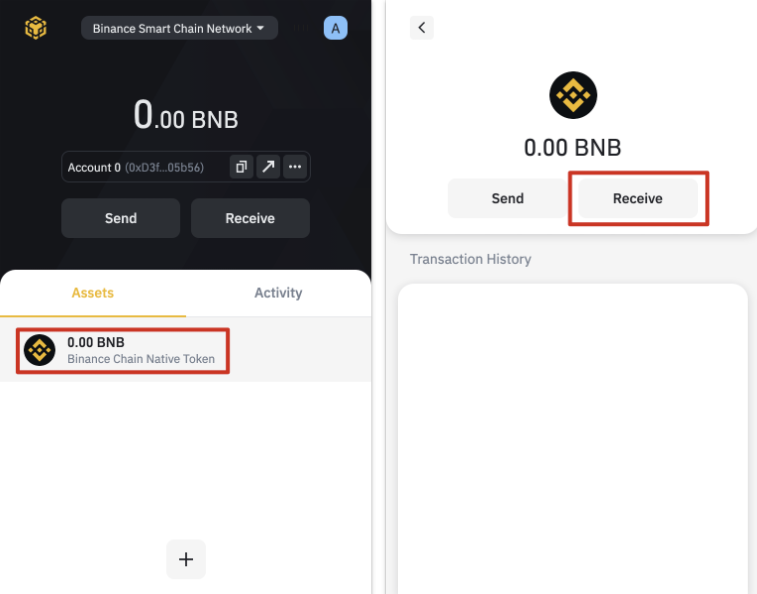
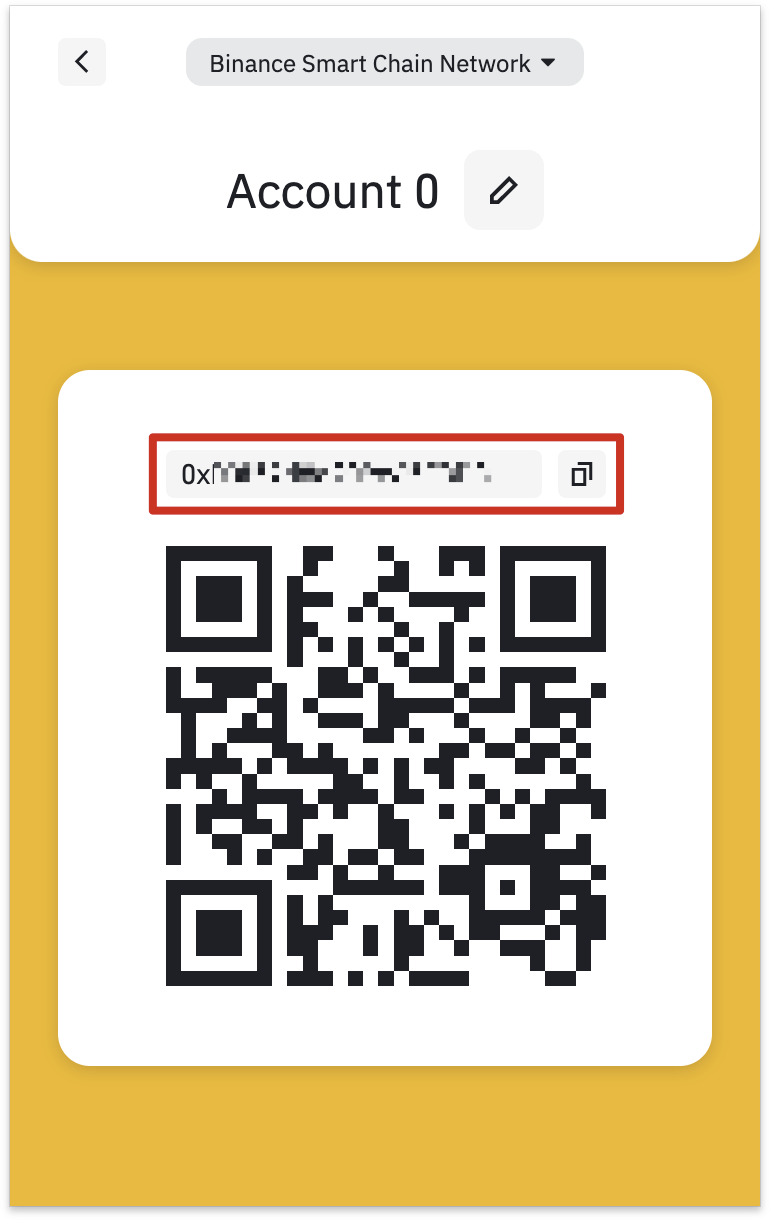
3. You will now see a QR code that you can scan, or an address to copy to your sending wallet. Please note that all BEP-20 addresses start with 0x, while BEP-2 addresses start with bnb.
Adding new tokens to your Binance Chain Wallet list
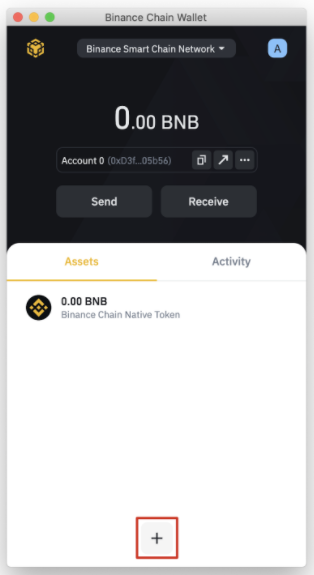
1. After setting up your Binance Chain Wallet, you will only see your BNB balance by default. You can add other tokens by searching the available list by clicking the [+] button.
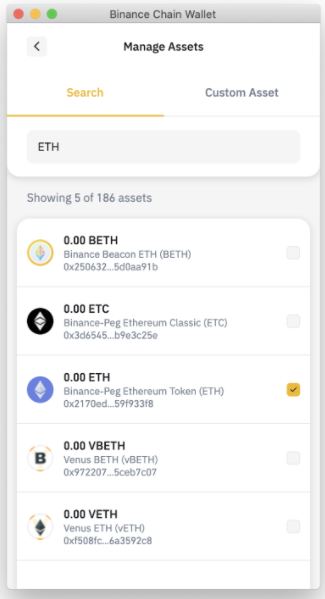
2. Find the token you want to add and click the checkbox. In this example, we added the Binance token linked to the value of Ether. Your wallet will still accept token deposits, even if you haven't checked it on the list. This action simply allows you to display your balance.
Connecting Binance Chain Wallet to Binance Smart Chain
It's easy to interact with Binance Smart Chain using your Binance Chain Wallet. With just a few clicks, you can start staking, trading and interacting with DApps. Let's see how to communicate with PancakeSwap. Almost all DApps will have the same user interface for connecting to your wallet.
1. Click the [Connect] button in the upper right corner of the screen.

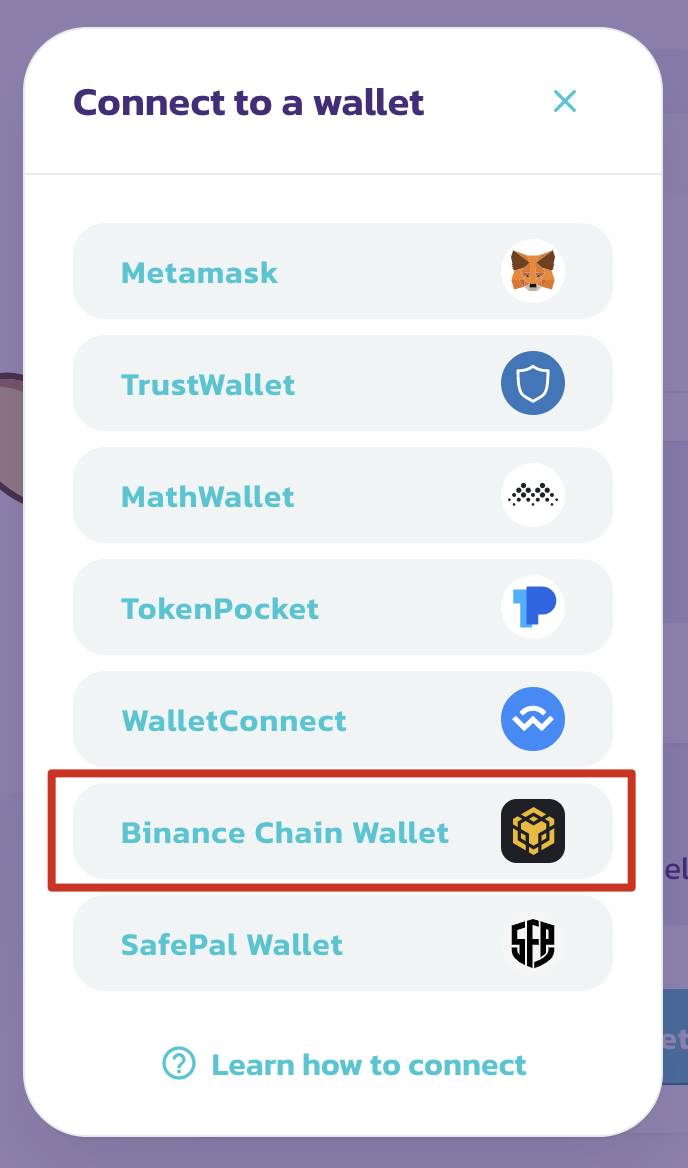
2. Select [Binance Chain Wallet]. Please note that not all Dapps support the use of Binance Chain Wallet.
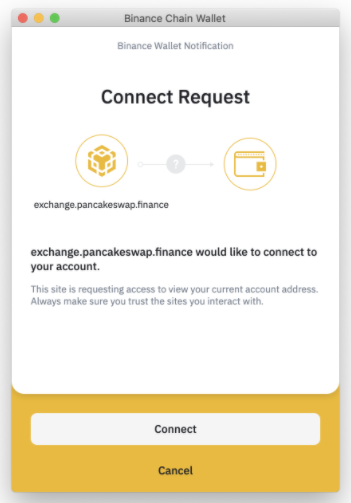
3. A pop-up window will appear asking if you want to connect to the Dapp. Click the [Connect] button to confirm.
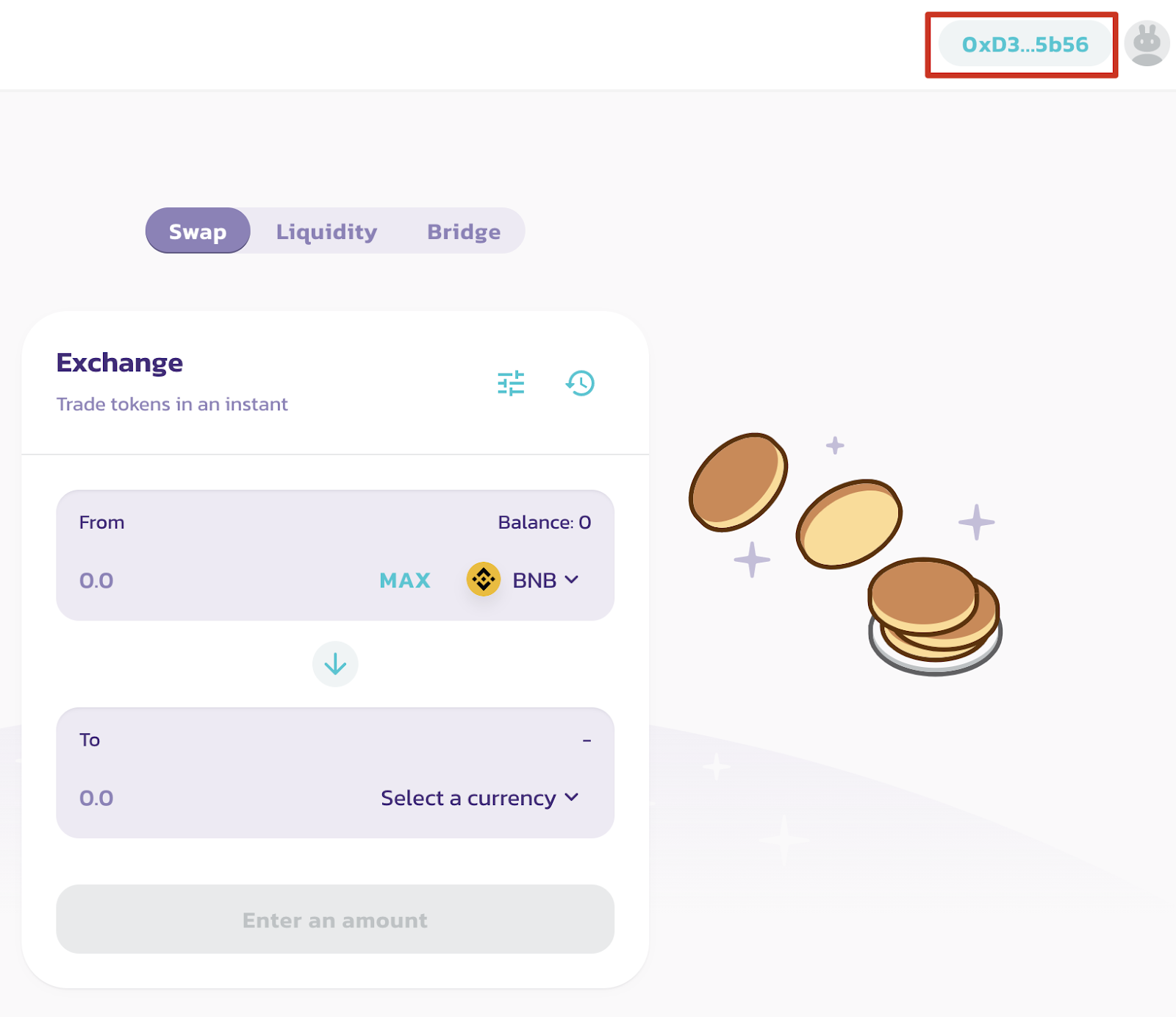
4. Your wallet address should now appear in the upper right corner.
To conclude
Binance Chain Wallet is a great choice when it comes to crypto wallet, especially for those who already have a Binance account. It's normal to be a little nervous when sending cryptoassets and using addresses, which is why using the Wallet Connect feature is interesting. The same goes for private keys and mnemonic phrases. This is a major obstacle for all new cryptocurrency users. Making wallets as easy to use as possible is therefore an excellent way to facilitate access to cryptocurrencies and DeFi.